Quick answer
When customers say payment failed on your website, check in this order: ask what error they saw, find the attempt in your payment gateway dashboard and read the decline reason, confirm the site uses live API keys and working webhooks, then rule out site faults such as an expired SSL certificate, a cached checkout page or a recent plugin update.
This guide is for when a buyer wanted to pay and something stopped them. A quiet shop with no orders is a different problem, covered in our guide to an online store with traffic but no sales.
First, find out what the customer actually saw
“Payment failed” can mean five different things, and each points somewhere else. Before you touch any settings, reply to the customer and ask for:
- The exact wording of the message, or a screenshot.
- Roughly what time they tried, so you can find the attempt in your logs.
- Whether a bank app or text message asked them to approve the payment.
- Which device and browser they used, and whether they tried a second card.
- Whether money appears to have left their account.
If the message came from their bank (“declined”, “do not honour”, “insufficient funds”), the problem is usually on the card side. If the page spun forever, went blank or showed a WordPress error, the problem is almost always on your site. That one answer halves the search.
The diagnosis order that saves time
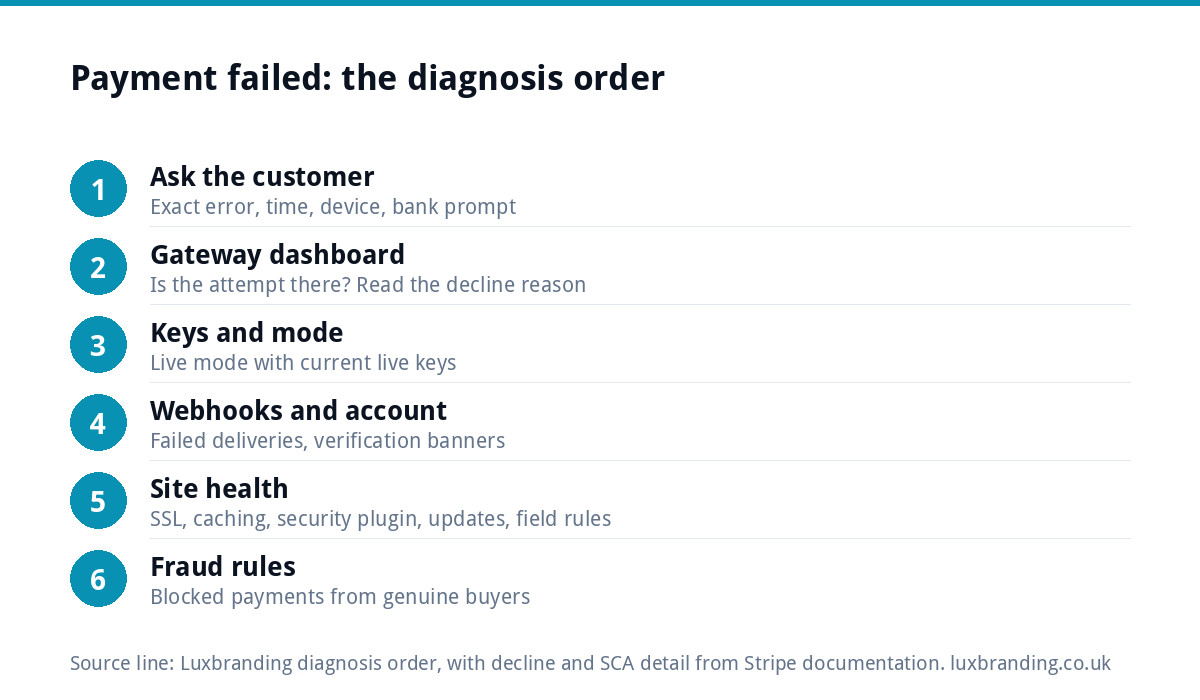
Check the cheapest, most common causes first. Each step rules out a whole category.
- Gateway dashboard. Is the attempt there at all? If it is, read the status and decline reason. If it is not, the payment never left your site.
- Keys and mode. Is the gateway plugin set to live mode with live keys?
- Webhooks. Are the gateway’s notifications reaching your site, or failing?
- Account status. Is there a banner in the dashboard asking for verification or warning of a restriction?
- Site health. SSL, caching, security plugins, recent updates and checkout field rules.
- Fraud rules. Are your own rules blocking customers who look unusual but are genuine?
Bank-side declines and 3D Secure
A decline means the customer’s bank looked at the payment and said no. Stripe’s guide to why payments are declined explains that issuers’ automated systems weigh signals such as spending habits, account balance and card data, including the expiry date, address and CVC. When the bank gives a specific reason, it comes back as a decline code you can read in the dashboard. When it gives a generic one, neither you nor the gateway will know more, and the customer has to ask their bank.
The other big bank-side cause is Strong Customer Authentication (SCA). Stripe’s SCA documentation says card payments use 3D Secure to meet SCA, and that customers’ banks might decline transactions that do not follow the authentication rules. In practice that means two things for a small shop:
- Your checkout must be able to show the bank’s approval step (the pop-up or the app prompt). An old or unsupported payment plugin may not.
- Customers who ignore or miss the approval prompt will see a failed payment even though nothing is wrong with your site. Stripe’s guide notes that a payment stuck as incomplete can simply mean the customer abandoned the authentication step.
If several customers using different banks fail at once, it is unlikely to be the banks.
Gateway problems: keys, webhooks and account restrictions
Test keys left in place
Every gateway has a test mode with its own keys. A site copied from a staging version, or a plugin reinstalled in a hurry, can end up live with test keys. Real cards then fail every time. In Stripe the keys say it plainly: test keys contain _test_ and live keys contain _live_. Check the plugin settings, not just the dashboard.
Expired or rotated keys
If someone regenerated the API keys in the gateway dashboard (often after a security scare), the old ones stop working at once. The site will usually log an authentication error rather than a decline.
Broken webhooks
Webhooks are how the gateway tells your shop “this payment succeeded”. If they fail, the customer is charged but the order sits as pending or failed, and the customer thinks payment failed when it did not. Look at the webhook section of the gateway dashboard for failed deliveries, then check that a security plugin or firewall is not blocking the gateway’s requests to your site.
Account restrictions
Payment providers can pause charges or payouts while they wait for identity or business documents. Check the dashboard and your spam folder for their emails.
Site-side causes: SSL, caching, plugins and form rules
If the attempt never reached the gateway dashboard, the fault is on your website. These are the usual suspects:
- Expired SSL or mixed content. Card fields from the major gateways need the page served over HTTPS. If the certificate has lapsed, or the checkout loads one image or script over plain HTTP, the browser can block the payment fields. See website showing “not secure” for the fix.
- Caching the checkout. Cart, checkout and account pages must never be served from a page cache. A cached checkout can carry another visitor’s session or an expired security token, and the order then fails on submit.
- A security plugin or firewall. Overly strict rules can block the background requests checkout relies on. Check the plugin’s block log at the time of the failed attempt.
- A plugin or theme update conflict. If failures started the day something updated, that update is the first suspect. Roll it back on a staging copy and test.
- Address and postcode rules. A custom validation rule can reject valid addresses, for example a postcode field that expects no space, or a phone field that rejects a +44 number.
- Currency settings. If the shop currency was changed, or a currency switcher is in use, a payment method that does not support that currency will fail or disappear.
If you also see unfamiliar admin users or redirects, stop and read what to do if your website has been hacked: injected checkout scripts are a known way card details get stolen.
Fraud rules blocking good customers
Fraud tools protect you from chargebacks, but they can also turn away real buyers. Stripe’s declines guide explains that Radar blocks high-risk payments, including those that break your custom rules or carry high risk scores, and that a blocked payment is never sent to the card issuer at all. It also notes that some customers may briefly see an authorisation on their statement, which the card issuer typically removes within a few days.
Signs your own rules are the problem: the decline reason says “blocked” rather than coming from the bank, failures cluster around overseas cards or mismatched billing addresses, or they started after someone tightened the rules. If you recognise a blocked payment as genuine, Stripe lets you add it to an allow list from the payment’s page, which stops your rules blocking matching attempts in future (it does not retry the payment).
Symptom checker: what you see and where to look
| Symptom | Likely cause | Where to look | Fix |
|---|---|---|---|
| “Your card was declined” for one customer | Bank decline | Gateway dashboard, decline code | Customer contacts their bank or tries another card |
| Every card fails, every time | Test keys or revoked keys | Payment plugin settings | Enter current live keys, switch to live mode |
| Customer charged, order shows failed or pending | Webhooks failing | Gateway webhook log, firewall log | Fix the endpoint, allow gateway requests, resend events |
| Fails after a bank pop-up or no pop-up appears | 3D Secure not completing | Dashboard status “incomplete” | Update the payment plugin; test with 3D Secure cards |
| Payment fields missing or greyed out | SSL lapsed or mixed content | Browser padlock and console | Renew SSL, load every asset over HTTPS |
| Page spins, then errors on submit | Cached checkout or plugin conflict | Cache exclusions, recent updates | Exclude checkout from cache, roll back the update |
| Dashboard says “blocked” | Your fraud rules | Fraud rule settings | Loosen the rule, allow-list genuine buyers |
| Address rejected before payment | Validation rule | Checkout field settings | Accept UK and international formats |
How to test checkout safely
Never test with your own real card over and over on a live shop: repeated failures can look like fraud to your gateway. Use test mode instead, ideally on a staging copy of the site. Stripe’s testing documentation lists cards that simulate each outcome without moving any money:
| Test | Card number | What it proves |
|---|---|---|
| Successful payment | 4242 4242 4242 4242 | The basic flow and order creation work |
| Generic decline | 4000 0000 0000 0002 | Customers see a clear error, not a blank page |
| Insufficient funds | 4000 0000 0000 9995 | The decline message is passed through |
| 3D Secure required | 4000 0000 0000 3220 | The bank approval step appears and completes |
Stripe says to use any valid future expiry date and any three-digit CVC. Then follow this protocol:
- Switch the payment plugin to test mode with test keys.
- Run each card above on desktop and on a phone.
- Check that each test order appears in the shop with the right status and that the confirmation email arrives.
- Check the webhook log shows every event delivered.
- Switch back to live mode and live keys, then confirm the setting saved.
- Place one small real order and refund it.
What to tell customers while you fix it
A customer who feels ignored will not come back. While you work:
- Tell them a failed payment is not normally taken, and that any temporary hold should drop off; if they see a completed charge, ask for the date and amount so you can check.
- Offer a second route, such as another payment method at checkout or a secure payment link by email.
- If the fault is site-wide, put a short notice on the checkout page so others do not try three times and give up.
- Email them once it is fixed. Many will complete the order.
When to get help, and what it costs with us
If the dashboard shows nothing, the logs make no sense, or the shop was built years ago on plugins nobody updates, it is usually quicker to have it looked at properly. Our e-commerce website build is £499 one-off for up to 20 products on WooCommerce or Shopify, with Stripe and PayPal set up and 30 days of support. If you are still choosing a platform, our Shopify vs WooCommerce comparison sets out the trade-offs.
Many checkout failures start with an expired certificate or an update nobody watched. Website management and hosting at £20 a month covers UK hosting, SSL, daily backups, security monitoring and automatic updates. You can see every price on our pricing page, then order online or email us at support@luxbranding.co.uk.
Get the UK Website Project Brief Template (free)
A two-page template for briefing any UK web designer: sitemap, integrations, audience and deliverables. Cuts revision rounds in half.
No spam. UK GDPR compliant. We only use your email to send this resource, unless you tick the box to hear from us.
Frequently asked questions
Why does my website say payment failed when the customer has money in their account? +
A bank can decline for reasons other than balance, such as a missed 3D Secure approval, a mismatched billing address or its own fraud checks. Your gateway dashboard shows the decline reason the bank sent back. If the attempt is not in the dashboard at all, the payment never left your site, so check keys, SSL and caching instead.
The customer was charged but the order shows as failed. What happened? +
This usually means the payment succeeded but the gateway's webhook, the message that tells your shop it worked, did not reach your site. Check the webhook log in the gateway dashboard for failed deliveries and make sure no firewall or security plugin is blocking it. Once fixed, resend the failed events and update the order.
How do I test WooCommerce checkout without using a real card? +
Switch your payment plugin to test mode with test API keys, ideally on a staging copy. Stripe publishes test card numbers such as 4242 4242 4242 4242 for a successful payment, plus cards that simulate declines and 3D Secure. Use any future expiry date and any three-digit CVC, then switch back to live keys and confirm it saved.
Can my own fraud settings block genuine customers? +
Yes. Fraud tools block payments that break your rules or score as high risk, and a blocked payment never reaches the customer's bank. If declines say blocked rather than giving a bank reason, review your rules. In Stripe you can add a genuine payment to an allow list so matching attempts are not blocked in future.
How much does it cost to get a broken online shop checkout fixed properly? +
It depends on the cause. A key or webhook fix is quick, while an old shop on unsupported plugins may be better rebuilt. Our e-commerce website build is £499 one-off for up to 20 products, with Stripe and PayPal set up, and website management and hosting is £20 a month including SSL and updates.