Quick answer
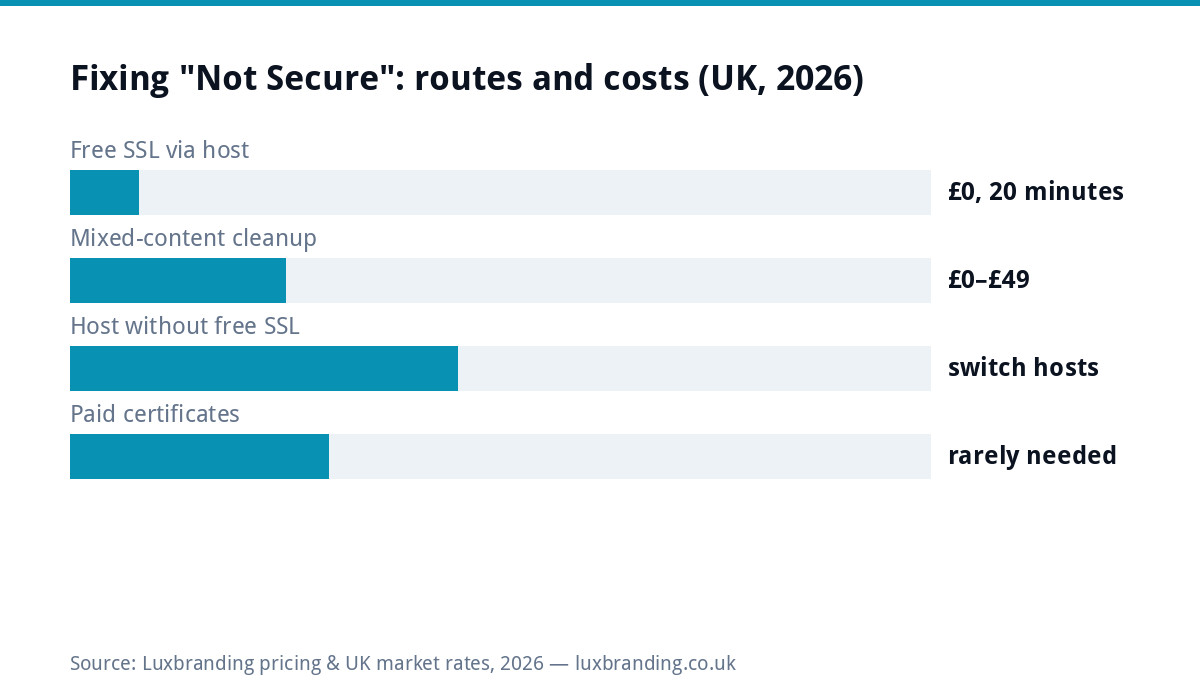
“Not Secure” means your site is serving over HTTP instead of HTTPS: no encryption, so browsers warn everyone. The fix is usually free and done in 20 minutes: activate the free SSL certificate almost every decent host includes, force HTTPS, then clear the mixed-content stragglers that keep the padlock away. What you should not pay: monthly “security certificate” fees for basic SSL. Hosts that charge them are telling you what kind of host they are.
What the warning actually costs you
Three ways it bleeds. Visitors: the flag reads as “dodgy website” to customers, and a meaningful share leave before your page says a word; on forms it is worse, because browsers explicitly warn against entering details. Rankings: Google has treated HTTPS as a signal for years, and everything the warning does to bounce rates compounds it. Trust by association: your quotes, invoices and van all point at a web address the customer’s phone calls insecure. For a fix that costs nothing, it is one of the highest-leverage twenty minutes in this entire blog.
The fix, step by step
| Step | Where | Cost |
|---|---|---|
| 1. Activate the free certificate | Host control panel: look for SSL/Let’s Encrypt, one-click on decent hosts | £0 |
| 2. Force HTTPS site-wide | Host toggle, or the standard redirect rule; WordPress also wants its site URL set to https | £0 |
| 3. Fix mixed content | Search-replace internal http:// links (plugins do this in minutes) | £0 DIY; £49-class one-off if handed over |
| 4. Verify | Padlock on every page type, and an SSL Labs test for the thorough | £0 |
| 5. Tell Google | Nothing special needed if redirects are in place; check Search Console a week later | £0 |
The mixed-content gotcha (why the padlock still hides)
The most common “I fixed it but it still warns” cause: the certificate is fine, but pages embed images, stylesheets or scripts via old absolute http:// URLs, so the browser downgrades the whole page. On WordPress this is a database search-replace of your own domain’s http references to https, plus a glance at the theme for hardcoded ones; the browser’s developer console names every offending file if you want the list. It is ten careful minutes, it is included in any professional pass, and it is the difference between “technically encrypted” and the padlock customers actually look for.
By situation: the honest routing
Decent host, just never set up: the five steps above, this afternoon, free. Host wants a monthly fee for basic SSL: pay nothing; move. A host monetising table-stakes security will be monetising you forever, and migration to proper £20/month managed hosting includes SSL as standard and usually a free move. Certificate EXPIRED (it worked before): renewal failed; re-issue via the host and turn auto-renew on, and note what it says about who is watching your site (nobody), which is the managed-care argument in miniature. Warning plus other oddities (strange redirects, unknown pages): treat as a security event and run our security checklist first. On a DIY builder: builders handle SSL for you; a warning there means a misconfigured custom domain, which their support fixes, or a nudge toward the graduation question.
Certificates, plainly (what you are actually installing)
Demystifying the jargon in one paragraph: an SSL/TLS certificate is a cryptographic identity for your domain that lets browsers encrypt traffic to it; Let’s Encrypt is the free certificate authority most hosts automate; the padlock means the CONNECTION is encrypted, nothing more (scam sites can have padlocks too, which is why the warning’s absence is table stakes rather than a trust badge). Certificates expire on short cycles by design and renew automatically when hosts do their job; expiry emails from your host deserve ten seconds of attention rather than the spam folder. Nothing here needs buying at small-business scale: the paid-certificate industry survives on organisation-validation products built for institutions, and on hosts quietly upselling what Let’s Encrypt gives away.
The whole fix at a glance
| Symptom | Do | Pay |
|---|---|---|
| “Not Secure” everywhere | Activate host’s free SSL, force HTTPS | £0 |
| Padlock missing on some pages | Mixed-content search-replace | £0 to £49 |
| Worked before, warns now | Renew certificate, enable auto-renew | £0 |
| Host charges monthly for SSL | Migrate to hosting that doesn’t | £20/mo done properly |
| Warning + weird behaviour | Security sweep first | See the security guide |
Print-worthy version of everything above: five rows, four of them free, and the paid row is a host upgrade you wanted anyway. The warning that scares customers most is genuinely the cheapest fix in web maintenance, which is why leaving it standing says more about a business than the missing padlock does.
The five-minute monthly check that catches everything early
Add one line to whatever monthly routine your site gets: load the site in a private window and glance at the padlock on three page types (home, a service page, the contact form). That single habit catches expired renewals, mixed-content regressions from new content, and misbehaving plugins before customers meet them. Pair it with the visibility checks from our free audit tool and the whole technical-health routine still fits inside fifteen minutes a month, which is the entire maintenance burden a small, well-set-up site should carry between professional care cycles.
While the bonnet is open (worth the same afternoon)
SSL is one line of the basic-hygiene list, and the others take minutes once you are logged in anyway: confirm backups exist and auto-run, update anything flagged, delete plugins you do not use, and check your contact form actually delivers (the silent-form failure quietly starves businesses the way sudden slowness does). Twenty minutes becomes forty and the site exits the at-risk cohort entirely. If any of it turns up scarier findings, the £99 professional pass covers the technical sweep with a report, and every price is on the price list.
Most of these problems are prevented by routine upkeep, and our WordPress maintenance guide sets out what needs doing, how often and what it costs.
One more win while logged in: the www question
While the certificate settings are open, check one cousin issue: your site should answer at ONE canonical address, with www and non-www (and http and https) all redirecting to it rather than serving copies. Four working variants of the same site split your search signals four ways and occasionally trip the same browser warnings this guide exists for. Most hosts’ HTTPS-force toggle handles it; the test is typing each variant and watching them all land on one, and the fix when they do not is one redirect rule any host’s support (or the £99 technical pass) applies in minutes. Small, boring, and permanently settled once done, which is the best kind of website job. The same one-address rule also keeps analytics honest, since visits stop splitting across variants, and it makes every future migration, certificate renewal and SEO conversation simpler because there is exactly one site to reason about. Canonical tidiness is invisible when right and expensive when wrong, like most of this page.
One last reassurance for the nervous: nothing in this guide can break a working site. Certificates, redirects and mixed-content fixes are additive and reversible, hosts see these tickets daily, and the twenty-minute version genuinely is twenty minutes on any decent host. The warning reads as scary precisely because it is designed to; the fix is among the gentlest jobs in web admin, which is why it makes such a satisfying first DIY win.
Get the UK Website Project Brief Template (free)
A two-page template for briefing any UK web designer: sitemap, integrations, audience and deliverables. Cuts revision rounds in half.
No spam. UK GDPR compliant. We only use your email to send this resource, unless you tick the box to hear from us.
Frequently asked questions
Why does my website say "Not Secure"? +
Your site is serving over plain HTTP instead of HTTPS, or its SSL certificate has expired or was never installed. Browsers flag every such site next to the address. It is a configuration issue, not a hack, and for most small businesses the fix is free.
How much does it cost to fix the Not Secure warning? +
Usually nothing: reputable hosts include free SSL certificates (Let's Encrypt) with a one-click install and auto-renewal. If your host charges extra for basic SSL, that fee is a reason to change hosts, not to pay it.
I installed SSL but the padlock still won't show. Why? +
Mixed content: your pages load fine over HTTPS but still pull some images or scripts over old HTTP links, so the browser withholds the padlock. The fix is a search-replace of internal http:// links to https://, a routine job on WordPress.
Does the Not Secure warning affect Google rankings? +
HTTPS has been a ranking signal for years, and the warning also drives visitors away before pages load, which harms every metric that matters. Contact forms on HTTP are the worst case: browsers warn users directly against typing into them.
Do I need to pay for an SSL certificate? +
Almost never at small-business scale. Free certificates encrypt exactly as strongly as paid ones. Paid tiers sell insurance warranties and organisation-validation displays that matter for banks, not local businesses.