Quick answer
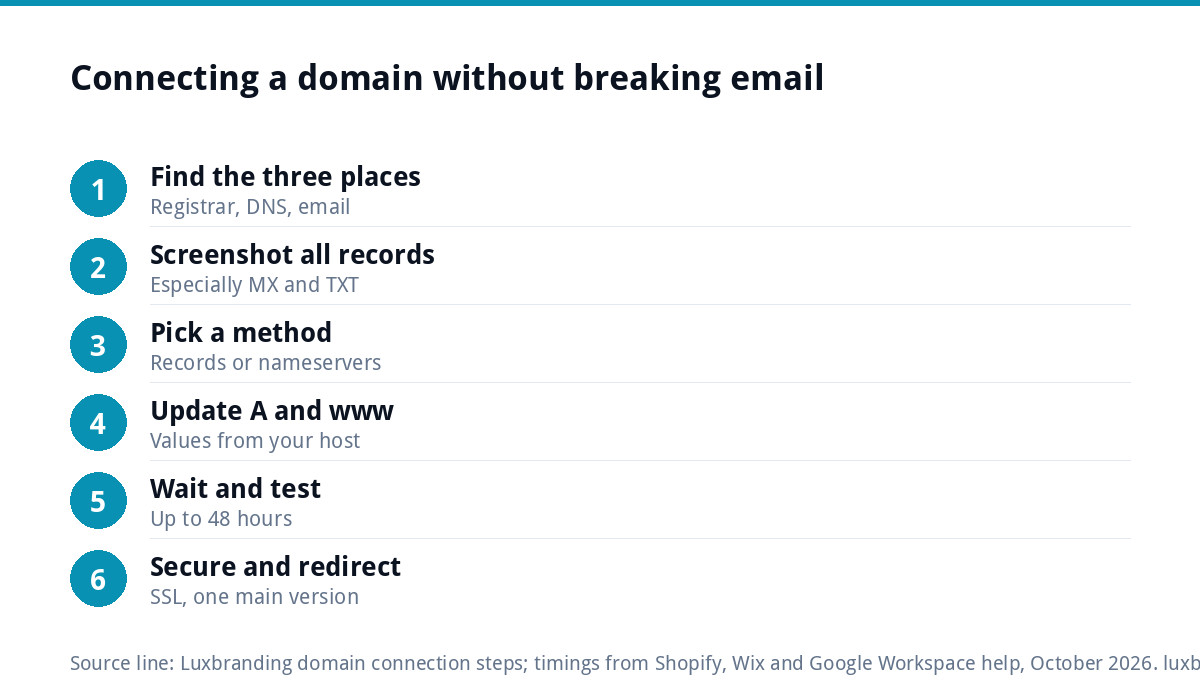
To connect a domain to your website, log in where the domain is managed and either switch its nameservers to your web host’s, or edit two DNS records: an A record pointing the bare domain at your host’s IP address and a CNAME pointing www at your site. Copy your email (MX) records first, then allow up to 48 hours.
The exact steps depend on where your domain was bought and where your website lives. This guide covers the four common setups for UK small businesses, the email trap that catches people out, and what to check if the site still does not load two days later.
Before you touch anything: three things to find out
Most domain problems come from changing settings in the wrong place. Before you start, write down the answers to these:
- Where is the domain registered? The company you pay each year for the name. Your renewal email will say.
- Where is the DNS managed? Usually the same company, but not always. If someone has moved the nameservers to a host or a service such as Cloudflare, the records are edited there instead.
- Where does your email live? Microsoft 365, Google Workspace, your web host or the registrar. Email depends on DNS records too, so any change can affect it.
Also check you can log in to the domain account and that the account email is one you still use. If a former web designer registered the domain in their own name, sort out ownership first; our UK domain names guide covers transfers and the traps around them.
Nameservers or DNS records: pick a method
There are two ways to point a domain at a website. Both work; they differ in what moves and what can break.
| Method | What you change | Risk to email | Best for |
|---|---|---|---|
| Change nameservers | Hand all DNS for the domain to your web host | High, unless the host recreates your email records | Sites where the host also runs your email, or a fresh domain with nothing on it yet |
| Edit DNS records | Change only the A record and the www CNAME | Low, as long as you leave MX and TXT records alone | Most businesses with email already working |
If email is already working on your domain, editing records is usually the safer choice, because everything else stays exactly where it is.
Setup 1: a WordPress site on a web host
This is the most common case for a custom-built small-business site.
- Get the server IP address from your host. It is usually in the hosting control panel or the welcome email.
- Log in to your domain’s DNS settings.
- Find the A record for the bare domain, often shown as @ or left blank, and change its value to the host’s IP address.
- Find the www record. Set it as a CNAME pointing to your bare domain, or as a second A record with the same IP, whichever your host recommends.
- Remove any old A records for the same name that point elsewhere, so traffic does not split between two servers.
- Save, then wait. Once the domain resolves, ask your host to issue the SSL certificate if it does not happen automatically.
Many hosts also need the domain added inside the hosting account before the site will answer on it, so check that step too.
Setup 2: a Wix site with the domain bought elsewhere
Wix offers two methods. With its pointing method, your DNS stays where it is and you update two records. Wix’s help article on connecting a domain using the pointing method lists an A record for the root domain and a CNAME for www, and stresses that both must be updated or the site may appear unsecure. It says propagation can take up to 48 hours. Use the values shown in your own Wix dashboard, as they can change.
Setup 3: a Shopify store with the domain bought elsewhere
Shopify works the same way. Its guide to connecting a third-party domain manually asks you, at the time of writing (October 2026), to point the A record at 23.227.38.65, set the www CNAME to shops.myshopify.com, and delete any other A or AAAA records on the domain. Shopify says it might take up to 48 hours for the domain to be fully live. Add the domain in your Shopify admin first so the store expects it.
Setup 4: domain bought through a website builder, site moving away
If you bought the domain inside Wix, Squarespace or a similar builder and now want a site elsewhere, you have two choices. You can keep the domain registered with the builder and edit its DNS records to point at the new host, using the steps in Setup 1. Or you can transfer the domain to an independent registrar, which separates the name from the website platform and makes future moves simpler.
Transfers need an authorisation code from the current registrar and the domain must be unlocked. Do the transfer at a quiet time, and not in the same week as launching a new site, so you are only changing one thing at once.
Protect your email while you do it
This is the step that causes the most damage. Your email is controlled by MX records, plus TXT records that prove your messages are genuine. If you switch nameservers to a host that does not recreate them, email stops arriving, often without anyone noticing for a day or two.
Before changing anything:
- Screenshot or export every existing DNS record.
- Note the MX records and any TXT records containing spf, dkim or dmarc.
- If you change nameservers, recreate those records at the new DNS provider before you switch.
Propagation applies to email too. Google’s guide to setting up MX records for Google Workspace says it can take up to 72 hours for new MX records to be recognised. If messages start landing in spam after a move, our guide to business emails going to spam walks through the authentication records.
The www version and the padlock
Two final details decide whether the connection looks professional:
- Pick one version. Decide whether your main address is with or without www, and redirect the other to it, so customers and Google see one site, not two.
- Get the padlock. Once the domain points at the right server, an SSL certificate needs to be issued for both versions. If the browser shows “Not secure” after the switch, our guide to a website showing not secure has the fixes.
How to check the change has worked
Do not judge the result from the computer you made the change on, because it may have cached the old address. Run these checks instead:
- Open the site on your phone with wi-fi switched off, so it uses mobile data and a different network.
- Try both versions of the address, with and without www, and confirm they end up at the same place.
- Check the padlock appears on both.
- Send a test email to your business address from a personal account, and reply from the business address.
- Submit the contact form on the new site and confirm the enquiry arrives.
If all five pass, you are done. Keep your screenshot of the old records for a few weeks anyway, in case something seldom used, such as a booking tool or a subdomain, turns out to have depended on them.
Still not working? Troubleshooting
| Symptom | Likely cause | Fix |
|---|---|---|
| Old site still showing | Changes still propagating, or your device has cached the old address | Wait, then try on mobile data or another device |
| Bare domain works, www does not | Missing or wrong www CNAME | Add the www record your platform specifies |
| Site loads on some visits, not others | Two A records pointing at different servers | Delete the old A record |
| “Not secure” warning | SSL not yet issued for the new setup | Ask the host to issue or reissue the certificate |
| Email stopped arriving | MX records lost in a nameserver change | Recreate MX and TXT records from your screenshot |
| Changes have no effect at all | Editing DNS in the wrong place | Check which nameservers the domain uses and edit there |
If you would rather not touch DNS
Plenty of owners would happily never see a DNS screen. If your site sits on our Website Management & Hosting, which is £20 a month for UK hosting, SSL, daily backups, security monitoring, automatic updates and up to three business email mailboxes, the hosting side is looked after. Email us at support@luxbranding.co.uk with where your domain is registered and we will tell you what the move involves before anything changes.
Our guide to website hosting costs compares the options, the website launch checklist covers the checks after a switch, and every price is on our pricing page.
Related reading: How to Start an Online Shop in the UK: 10 Steps
Get the UK Website Project Brief Template (free)
A two-page template for briefing any UK web designer: sitemap, integrations, audience and deliverables. Cuts revision rounds in half.
No spam. UK GDPR compliant. We only use your email to send this resource, unless you tick the box to hear from us.
Frequently asked questions
How do I point my domain to my website? +
Log in where your domain's DNS is managed and either change the nameservers to your web host's or edit two records: an A record for the bare domain pointing at the host's IP address and a CNAME for www. Copy your existing email records first, then allow up to 48 hours for the change to spread.
Should I change nameservers or DNS records? +
If email already works on your domain, editing the A record and www CNAME is usually safer, because your email records stay untouched. Changing nameservers hands all DNS to the new provider, so every email record must be recreated there first. It suits domains with nothing else on them or hosts that also run your email.
How long does it take for a domain to connect? +
Usually a few hours, but platforms quote up to 48 hours for DNS changes to spread fully. Shopify and Wix both give that window in their help guides. Email changes can take longer: Google says new MX records can take up to 72 hours to be recognised. Test on mobile data to avoid cached results.
Will connecting my domain to a new website affect my email? +
It can. Email depends on MX and TXT records in the same DNS zone. Editing only the A and www records leaves email alone. Switching nameservers can break email unless the MX, SPF, DKIM and DMARC records are recreated first. Screenshot every record before you change anything, so you can restore it.
Can Luxbranding connect my domain for me? +
If your site is on our Website Management and Hosting at £20 a month, the hosting side is handled for you, including SSL, daily backups and up to three business email mailboxes. Email support@luxbranding.co.uk with where your domain is registered and we will explain what the move involves before anything changes.