Quick answer
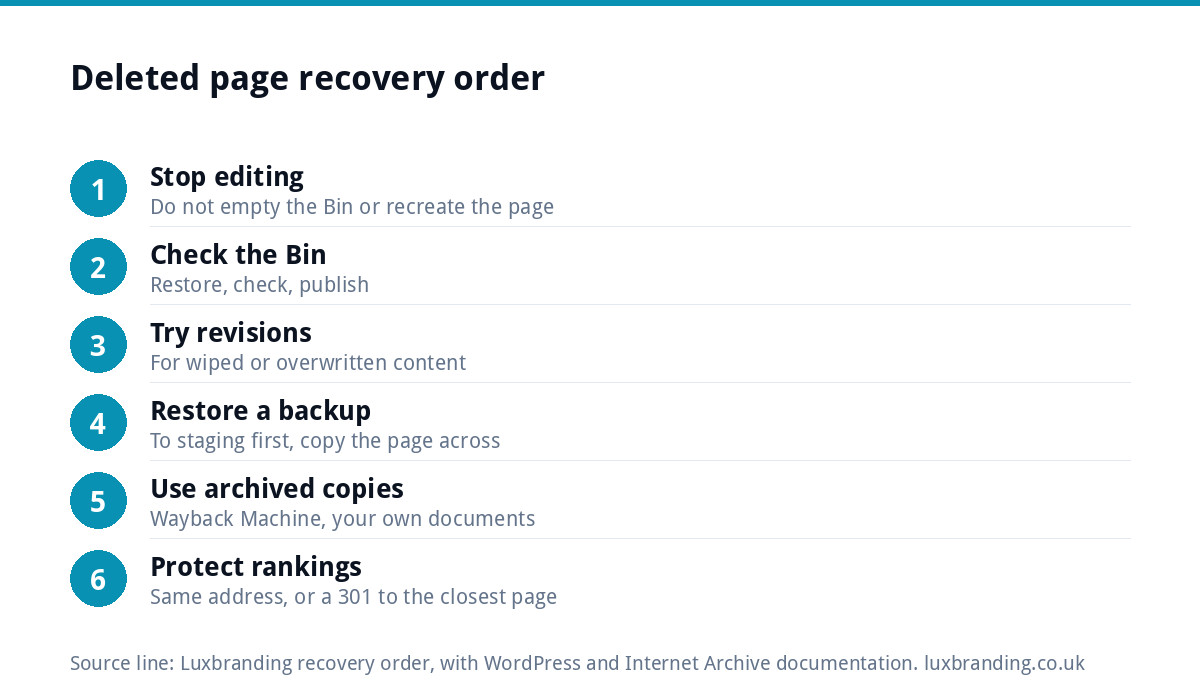
If you deleted a website page by accident, stop editing and look in this order: the Bin (Trash) in your site’s admin, the page’s revision history, your host’s backups, then archived copies such as the Wayback Machine. On WordPress most deleted pages come straight back from the Bin in under a minute, with the same address.
The steps below assume a typical small business site. Work through them in order, because each one is quicker and more complete than the next.
First, stop and do no more harm
The worst thing you can do after deleting a page is to keep clicking. Three habits make a recovery harder:
- Emptying the Bin to “tidy up” after the mistake. That turns a one-click restore into a backup restore.
- Creating a new page with the same name. WordPress may give the new page the old address, and the restored page then gets a different one, such as /services-2/.
- Restoring a full backup straight away. A full restore can wipe out orders, enquiries or edits made since that backup was taken.
Write down what was deleted, roughly when, and what the page address was. You will need all three whichever route you take.
Where to look, by what happened
| What happened | Look here first | Usual result |
|---|---|---|
| Page deleted in WordPress | Pages, then Bin (Trash) | Full page back, same address |
| Page content wiped or overwritten, page still exists | Revisions in the page editor | Earlier version restored |
| Bin emptied, or page deleted weeks ago | Host or plugin backups | Page back from the backup date |
| Whole site changed by an update or import | Host backups, restored to a staging copy first | Site back to a known good state |
| No backups at all | Wayback Machine, Google cache, your own copies | Text and images to rebuild from |
| Website builder (Wix, Squarespace and similar) | The builder’s own site history or restore tool | Depends on the platform |
Step 1: check the Bin
In WordPress, deleting a page normally moves it to the Bin rather than erasing it. Go to Pages in the dashboard and look for the Bin link at the top of the list. Hover over the page and choose Restore. The page goes back to Draft, so open it, check it and press Publish.
Check the address before publishing. If you created a replacement page in the meantime, delete that one first, then restore the original so it gets its old address back.
Step 2: use revisions when the content is gone
Sometimes the page still exists but the words are gone: a block deleted, a section pasted over, a layout broken by an edit. That is what revisions are for. The WordPress documentation on revisions explains that every saved draft or published update is recorded, and you can drag a slider to compare versions and press Restore to bring one back.
Two catches. Some hosts or developers limit how many revisions are kept, so the version you need may have been trimmed. And revisions cover the page content, not settings or plugins, so they will not undo a broken theme.
Step 3: restore from a backup, carefully
If the Bin has been emptied, a backup is the next route. The WordPress guidance on backing up a site says a backup has two parts, the database and the files, and you need both to restore a typical site fully. Pages live in the database, so a files-only backup will not bring a page back.
- Find out what backups exist: your host’s control panel, a backup plugin, or your web company.
- Pick the most recent backup taken before the page was deleted.
- Restore it to a staging copy, not the live site, if your host offers staging.
- Copy the missing page from the staging copy into the live site, or export and import just that page.
- If you must restore the live site, note any orders or form enquiries received since the backup date first.
If you do not know whether you have backups, find out today, before you need one. Our WordPress maintenance guide sets out what a sensible backup routine looks like.
Step 4: no backup? Rebuild from archived copies
When there is no backup at all, you can usually still recover the words and images, even if not the page itself. The Internet Archive’s guide to using the Wayback Machine shows how to enter your page address, pick a date on the calendar and open the saved copy. Blue dots mark the captures that loaded properly.
Other places to look:
- Your own emails, documents and quotes, where page copy often started life.
- Your web designer’s handover files, if they supplied the copy in a document.
- Your social posts, which often repeat service descriptions and prices.
- Your computer’s downloads folder for the original photos.
Rebuild the page at the same address. That matters more than getting every word identical.
On a website builder instead of WordPress
Wix, Squarespace and similar builders each have their own version of a Bin or site history, and they work differently. Search the builder’s help centre for “restore deleted page” or “site history” before you make any further changes, because some builders only keep a limited window of saved versions. If you pay a web company to look after a builder site, ask them first: they may have their own copies of the copy and images.
A worked example
Say a kitchen fitter tidies up their site on a Sunday evening, deletes what they think is an old draft and empties the Bin. On Monday the “Kitchen Installations” page, their best enquiry source, is gone. The host’s control panel shows a nightly backup from Saturday. They restore that backup to a staging copy, open the page there, copy the content into a new page with the original address on the live site, and publish. Total time is under two hours, and no enquiries received over the weekend are lost, because the live site was never rolled back.
Recovery routes compared
| Route | Time | What comes back | Risk |
|---|---|---|---|
| Restore from the Bin | Minutes | The whole page and its address | Very low |
| Restore a revision | Minutes | Page content at an earlier save | Low |
| Single page from a backup | An hour or two | The page as it was on the backup date | Low if done via staging |
| Full site restore | An hour or more | Everything as it was on the backup date | Can lose recent orders and edits |
| Rebuild from the Wayback Machine | Half a day or more | Text and some images | Layout and settings lost |
Protect the page’s place in Google
A deleted page returns a “not found” error, and if it stays that way Google will eventually drop it from results. If it ranked or had links pointing at it, act quickly.
- Restore the page at the same address, then ask Google to recrawl it in Search Console.
- If you cannot restore it, set a permanent (301) redirect from the old address to the closest live page, not to the homepage.
- Check your menus and internal links, which may still point at the old address.
If visits have already fallen, our guides to website traffic dropping suddenly and a website not showing on Google cover what to check next.
Make it impossible to lose a page again
Accidents happen to everyone who edits their own site. The fix is a setup where one wrong click is never a disaster:
- Daily automatic backups that include the database, kept off the web server as well as on it.
- A backup taken before every plugin, theme or WordPress update.
- Separate logins for each person who edits, with the lowest role that does the job.
- A staging copy for bigger changes, so experiments never touch the live site.
If the editing itself is what keeps going wrong, our guide to not being able to update your own website covers simpler ways to make changes safely.
When to hand it over
If the Bin is empty, nobody knows where the backups are, or the site is a shop taking orders, get help before restoring anything. A rushed full restore on a live shop is how one deleted page becomes a week of missing orders.
Our Website Management and Hosting plan is £20 a month and includes UK hosting, SSL, daily backups, security monitoring, automatic updates and up to three business email mailboxes. Details are on the website management and hosting page, and every price is on our pricing page. If something is missing right now, email us at support@luxbranding.co.uk with the page address and when it disappeared.
Get the UK Website Project Brief Template (free)
A two-page template for briefing any UK web designer: sitemap, integrations, audience and deliverables. Cuts revision rounds in half.
No spam. UK GDPR compliant. We only use your email to send this resource, unless you tick the box to hear from us.
Frequently asked questions
Can I get back a WordPress page I deleted by mistake? +
Usually, yes. WordPress normally moves a deleted page to the Bin rather than erasing it. Go to Pages, open the Bin, hover over the page and choose Restore. It returns as a draft, so check it and publish it again. If the Bin has been emptied, you will need a backup that includes the database.
What if I deleted the content but not the page? +
Use revisions. WordPress records each saved draft and published update, and the revisions screen lets you compare versions with a slider and restore an earlier one. Some sites limit how many revisions are kept, so act quickly. Revisions cover page content only, not theme settings or plugins.
Should I restore my whole website from a backup? +
Only if you have to. A full restore puts everything back to the backup date, which can wipe out orders, enquiries and edits made since. It is safer to restore the backup to a staging copy and move the single missing page across. If you must restore the live site, note recent orders and enquiries first.
How do I recover a page if there is no backup? +
Look up the page address in the Internet Archive's Wayback Machine and open a capture from before the deletion. Copy the text and save the images, then rebuild the page at the same address. Your own documents, emails and social posts often hold the original copy too.
Will deleting a page hurt my Google rankings? +
It can if the page stays missing. A deleted page returns a not found error and Google will eventually drop it. Restore it at the same address and request a recrawl, or set a permanent 301 redirect to the closest live page if it cannot come back. Fix any menu links that still point at it.