Quick answer
To get a logo with a transparent background, you need it as a PNG with transparency or an SVG, never a JPG. With the original vector file, exporting one takes minutes. With only a JPG, a background remover gives a quick patch for screens, but a clean print result usually means a vector redraw, £79 with us.
The white box around a logo on a coloured website header, a dark social banner or a photo is one of the most common branding headaches. This guide shows how to check what you already have, the quick fixes and their limits, the export settings that work, and the mistakes that make things worse.
Why your logo has a white box around it
Image files either store transparency or they do not. A JPG cannot: whatever background the logo was saved on, usually white, is part of the image forever. A PNG can store transparent pixels, and the developer reference MDN’s image format guide notes that PNG is preferred over JPEG when transparency is needed. Vector formats such as SVG, EPS, AI and vector PDF have no background at all unless one was drawn in.
So the white box is not a design fault in your logo. It is a file-format problem, and the fix depends on which files you can lay your hands on.
Step 1: check what you already have
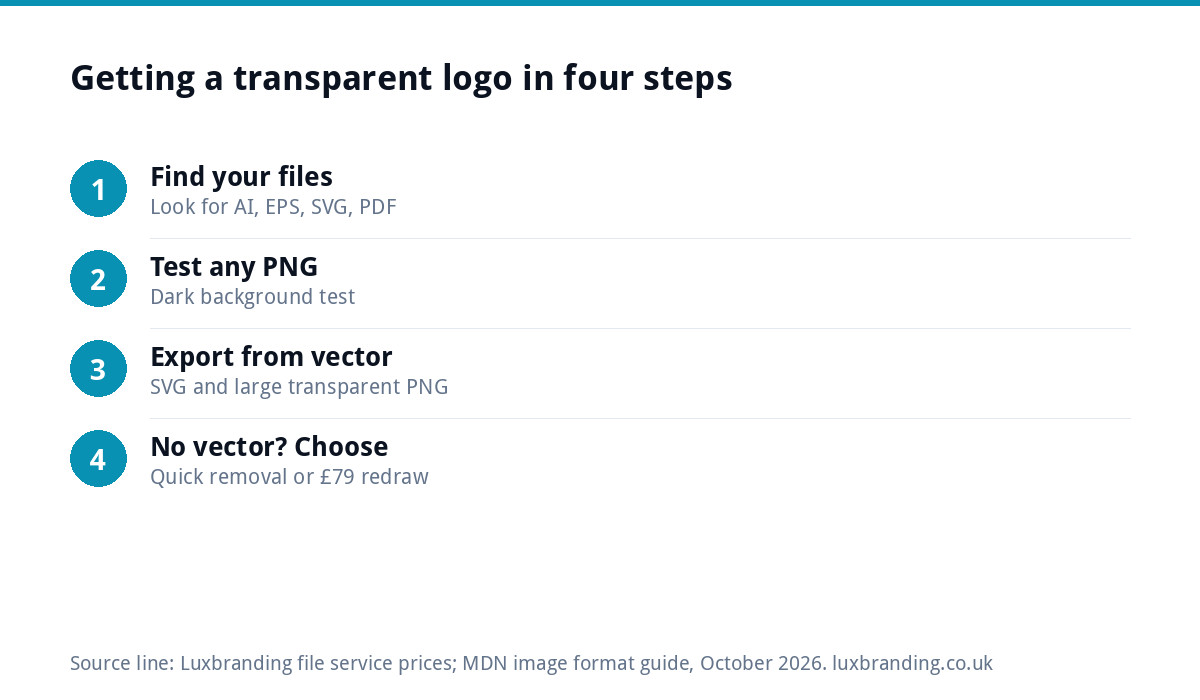
Before paying anyone, search your email and old folders for every logo file you can find. Look for these extensions:
| File type | Transparent? | What to do with it |
|---|---|---|
| .svg | Yes, normally | Use on websites; export PNGs from it |
| .ai or .eps | Yes, normally | The master; export transparent PNG or SVG |
| .pdf (from a designer) | Often, if vector | Open and check; may contain the vector master |
| .png | Sometimes | Test it (see below) |
| .jpg or .jpeg | Never | Needs background removal or a redraw |
| .webp | Sometimes | Test it; convert to PNG for most uses |
If you find an AI, EPS or SVG file, you probably already own a transparent logo and just need it exported. Our guide to logo file formats explains each of these in more depth.
Step 2: test whether a PNG is really transparent
A PNG is not automatically transparent. Many are saved with a white background. Test before you use one:
- Open a new document in Word, PowerPoint or Google Slides and set the page or slide background to a dark colour.
- Insert the PNG.
- If you see a white rectangle, the background is solid. If the logo floats cleanly on the dark colour, it is transparent.
Watch out for the fake checkerboard. Some images downloaded from the web show the grey-and-white chequered pattern that means “transparent” in editing software, but the pattern is actually printed into the image. Put it on a dark background and the checkerboard appears. That file is no use and should be thrown away. Delete it from your folders too, so nobody picks it up by mistake later.
Where to ask for the original file
If the search turns up nothing useful, the vector master may still exist with someone else. Before paying for a fix, try these, in this order:
- The original designer. Even years later, many designers can find old project folders. Ask specifically for “the AI, EPS or SVG master files, plus a transparent PNG”.
- Your web developer. Websites often use an SVG or a large transparent PNG of the logo. Ask for the file itself rather than right-clicking and saving from the site, which may give you a smaller copy.
- Your signwriter or printer. Anyone who has cut vinyl or printed your van, workwear or stationery needed a vector file to do it. They may have kept a copy of the artwork they used.
- Old email attachments. Search your inbox for “eps”, “svg”, “ai” and “logo” together with the designer’s name.
Ask politely and name the exact files. Most people are happy to help, and a two-line email costs nothing compared with a redraw.
Step 3: export a transparent version from a vector file
If you have an AI, EPS, SVG or vector PDF, the cleanest route is a fresh export:
- For websites: use the SVG itself where the site supports it. It is sharp at every size and has no background.
- For everyday use: export a PNG with transparency switched on, at a generous size such as 2,000 pixels wide, so it can be scaled down without blur.
- For dark backgrounds: export a white version too. A transparent full-colour logo can still disappear on a dark van or header.
If you do not have design software, Microsoft Office can insert SVG files directly, as Microsoft’s SVG help page explains, which covers documents, quotes and presentations. Our guide to what to do if you only have a JPG covers the opposite situation in detail.
Step 4: if you only have a JPG, the quick fix
Background removal tools can cut a logo out of a white JPG. They work best when the logo has solid shapes and a plain background. A few points to know:
- Online tools vary, and many limit free use or reduce output size. Canva’s Background Remover, for example, is available on paid plans only (at the time of writing, October 2026).
- Results are pixels, not vectors. The PNG you get is no sharper than the JPG you started with.
- Expect rough edges, especially around thin lines, small text and curves.
For a social profile picture or an email signature, a removed-background PNG may be good enough. For signage, vehicle graphics, embroidery or anything printed large, it will not be.
The mistakes that make it worse
| Mistake | What happens | Better route |
|---|---|---|
| Saving the transparent result as JPG | The white box comes straight back | Save as PNG or SVG |
| Using the magic wand on a small JPG | A white halo around every edge | Start from the largest file you have |
| Upscaling a tiny logo with AI tools | Invented details and wobbly letters | Rebuild as vector |
| Screenshotting your website logo | Low resolution and often a background | Ask whoever built the site for the SVG |
| Putting a full-colour logo on a dark background | Dark parts vanish | Use a white or reversed version |
When a redraw is the right answer
If the only file is a small or blurry JPG, or the logo has fine detail, the proper fix is to rebuild it as vector. A vectorised logo has no background, scales to any size and can be exported as transparent PNGs, SVGs and print files whenever you need them. The method is explained in our guide to how to vectorise a logo.
Our Recreate & Vectorise service redraws your existing logo as true vector, including logos generated by AI tools, for £79 for one layout, plus £39 per additional layout. If your logo came out of an AI image generator and is too detailed to clean up, fixing an AI logo covers the options.
If you want a small change at the same time
A file fix is often the moment people notice the logo also needs a colour tweak, a cleaner font or a white version for the van. If you already have a vector file, those changes are a Logo Edit at £50, with a 24 to 48 hour turnaround from receiving the file and your list of changes. The edited logo comes back in every format, including SVG and PNG, with colour codes, and you own the amended artwork.
Which transparent file to use where
- Website header and footer: SVG, or a large transparent PNG if the site cannot take SVG.
- Social profile pictures: a square PNG of the icon version, on a solid brand colour rather than transparent, because platforms fill transparency with their own background.
- Word and PowerPoint: transparent PNG or SVG.
- Printers and signwriters: EPS, AI or vector PDF. They do not need a PNG at all.
- Email signatures: a small transparent PNG, since many email programs do not show SVG.
Next steps
Start with the file search and the dark background test; you may already own what you need. If you do not, choose between a quick background removal for screen use and a vector redraw for anything printed. All our file service prices are on the pricing page. To order, go through the service page, then reply to the order confirmation email with your logo file; if the job turns out bigger than expected, we say so before any work starts.
Get the UK Branding Budget Worksheet (free)
A printable worksheet: decide what your brand needs now and price it against fixed published prices and the IPO trademark fee.
No spam. UK GDPR compliant. We only use your email to send this resource, unless you tick the box to hear from us.
Frequently asked questions
Why does my logo have a white background? +
Because it is saved as a JPG or as a PNG without transparency. JPG files cannot store transparent pixels, so whatever background the logo was saved on travels with it. PNG and vector formats such as SVG, EPS and AI can be transparent, so a fresh export from one of those usually fixes it.
How do I check if my logo PNG is transparent? +
Put it on a dark background. Open a new slide or document, set the background to a dark colour and insert the PNG. A white rectangle means the background is solid. Watch for fake checkerboards: a grey and white pattern printed into the image is not real transparency.
Is SVG or PNG better for a transparent logo? +
SVG is better for websites because it stays sharp at every size and has no background. PNG is better for documents, email signatures and social media, where SVG is not always supported. Printers and signwriters want neither; they need EPS, AI or vector PDF files.
Can a background remover fix my logo? +
For screen use, often yes, if the logo has solid shapes on a plain background. The result is still pixels, so it is no sharper than the original and edges can be rough. For signage, vehicles, embroidery or large print, rebuilding the logo as vector is the reliable fix.
How much does Luxbranding charge to make my logo transparent? +
If your logo needs rebuilding as vector, Recreate and Vectorise is £79 for one layout plus £39 per additional layout, and the result can be exported transparent at any size. If you already have a vector file and want changes such as a white version, a Logo Edit is £50.