
Quick answer
Your files are fine. WordPress is running, it asked the database for your content, and the database did not answer. That is a connection failure, not a loss, and in most cases the content is untouched.
Work through the causes in order. The first two take about five minutes between them and resolve the majority of cases on UK shared hosting.
What the error actually is
A WordPress site is two things: the files, which are the software and your theme, and the database, which holds every post, page, setting and customer record. Each page view requires both.
When the files load but the database does not answer, WordPress cannot build the page and prints this message instead. It is deliberately vague because the underlying reason could be any of several things, and the software cannot tell which.
That vagueness is why people panic. The message sounds like the database is broken. Usually it is simply not answering.
The five causes, in order of likelihood
| Cause | How common | Typical trigger | Who fixes it |
|---|---|---|---|
| Database server overloaded | Most common | Traffic spike, a noisy neighbour on shared hosting | Host, or waiting |
| Connection limit reached | Common | A plugin opening connections faster than it closes them | You, then host |
| Wrong credentials | Common after changes | Migration, password reset, restored backup | You |
| Database server down | Occasional | Host maintenance or incident | Host |
| Corrupted tables | Least common | Interrupted write, disk problem | You, then host |
The ordering matters because the natural instinct is to start at the bottom of that table, with corruption, and that is the rarest cause and the one whose usual remedy risks the most.
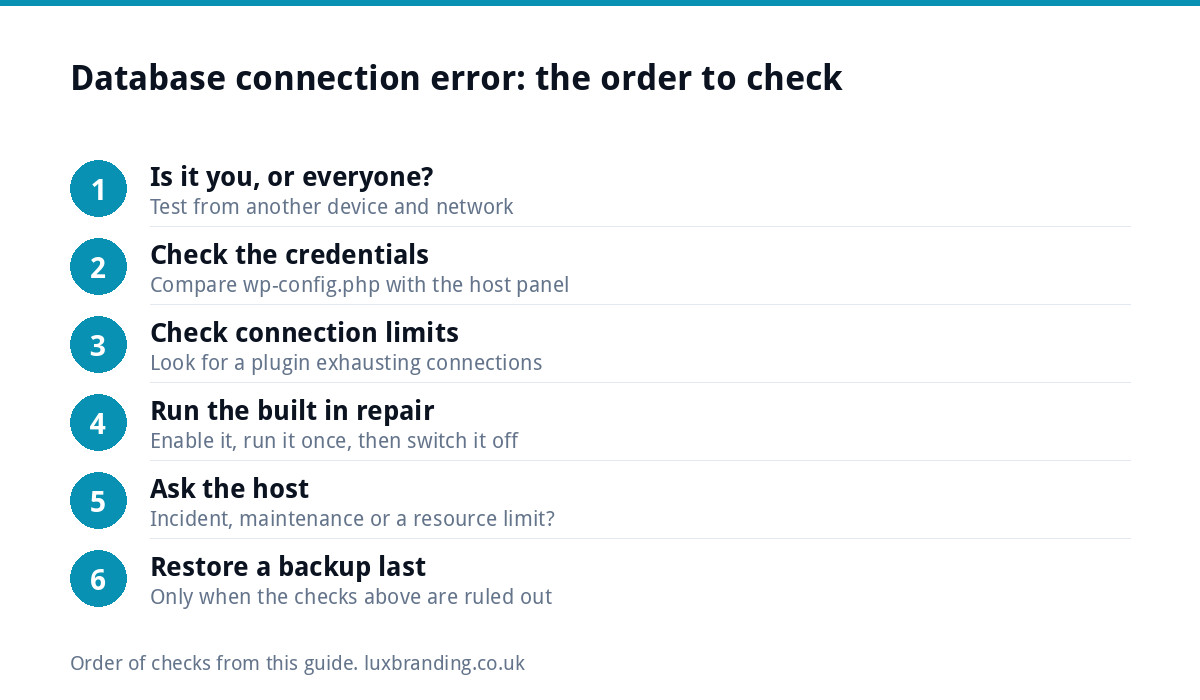
Check one: is it you, or everyone?
Before touching anything, find out whether your host has an incident. Most UK hosts publish a status page, and a database outage affecting one server affects every site on it.
If there is a live incident, there is nothing to fix and any change you make now will be a change you have to remember to undo later. Wait.
If the host looks healthy, try loading the admin area at your domain followed by wp-admin. Occasionally the front end fails while the admin returns a more specific message, and a more specific message is worth a great deal here.
Check two: the credentials
WordPress stores its database details in wp-config.php in the site root. Four values matter: the database name, the user, the password and the host.
These change more often than people expect. A migration to new hosting, a restored backup carrying the old server’s settings, or a password reset in the hosting panel will each break the connection while leaving everything else perfect.
Compare the four values against what your hosting panel currently shows for that database. If any differ, that is your answer. Take a copy of the file before editing it.
One detail catches people out: the database host is not always localhost. Several UK hosts use a separate database server with its own address, and a site moved between providers will carry the wrong one.
Check three: connection exhaustion
If the site works intermittently, loading sometimes and failing at others, the likely cause is running out of available connections rather than anything being wrong.
This usually traces to a plugin doing more database work than the hosting allows, and it tends to start after an update rather than out of nowhere. Ask what changed in the days before the errors began.
Where you can reach the admin area, disabling recently updated plugins one at a time identifies it. Where you cannot, renaming the plugins folder over SFTP disables all of them at once, which is blunt but tells you immediately whether a plugin is responsible.
Check four: the built in repair
WordPress includes a repair tool that is switched off by default. Adding a single line to wp-config.php enables a repair page you can then visit, and the official documentation for editing wp-config.php gives the exact line and its placement.
Two things to know. The repair page is unauthenticated while that line is present, so remove the line as soon as you are finished. And repair addresses table level corruption, which is the least likely cause, so reaching for it first is usually reaching past the real problem.
Getting a more specific error
The message on screen is deliberately generic. The server almost always knows more, and two places hold the detail.
The first is your hosting panel’s error log. Most UK hosts expose one, and a database failure normally leaves an entry naming the actual reason: access denied for a user, too many connections, or a server that could not be reached. Those three point at three different fixes, and the on screen message points at none of them.
The second is WordPress debugging. Adding the debug constants to wp-config.php writes errors to a log file inside wp-content rather than displaying them to visitors, which is the important distinction. Never switch on the version that prints errors to the screen on a live site: it exposes file paths and database details to anyone who visits.
| What the log says | What it means | Where to go next |
|---|---|---|
| Access denied for user | The username or password is wrong | Check two, the credentials |
| Unknown database | The database name is wrong or it was removed | Check two, then the hosting panel |
| Too many connections | The connection limit is exhausted | Check three, a plugin is likely |
| Can’t connect to MySQL server | The database server is unreachable | The host, not you |
| Table marked as crashed | Genuine table level damage | Check four, the repair tool |
| No entry at all | The failure is before PHP logs anything | The host’s own server log |
The official MySQL error handling reference covers the less common messages, though the six above account for nearly all real cases.
Spending five minutes finding the specific error is almost always faster than working through the generic list, and it is the step most people skip because the site being down feels like a reason to hurry.
When to stop and call the host
Stop if the credentials are confirmed correct, the site is not intermittent, and nothing recently changed. At that point the problem is on the server side and further changes from you can only add variables.
Give the host three things: the exact error, the time it began, and what you have already ruled out. A ticket that says the site is down gets a slower answer than one that says the credentials in wp-config match the panel and the error began at a stated time.
Why restoring a backup comes last
Restoring feels decisive, and it is the step most likely to cause the loss people were afraid of. If the database was healthy and merely unreachable, a restore replaces current content with older content and discards everything since, including orders and enquiries.
If you do restore, take a copy of the current database first, even a database you believe is broken. A broken copy you still hold is worth more than a clean one you no longer have.
What to tell your host
If the checks above point at the server, a precise support request gets a faster answer than “my site is broken”. Include:
- The exact error text and the time you first saw it.
- Whether the admin area shows the same error or a different one.
- What changed in the last day: a plugin update, a migration, a password reset or a traffic spike.
- Whether the built in repair screen ran, and what it reported.
- The database name and user from your configuration file, but never the password.
Then ask two specific questions: did the database server have an incident or maintenance at that time, and did your account hit its connection or resource limit? Those two answers separate a problem on their side from a problem on yours, and they decide whether the next step is waiting or changing something in your own setup. Keep the ticket number. If the error comes back, a pattern across tickets is what persuades a host to move your account to a less crowded server.
Preventing the repeat
Recurrences usually mean one of two things: a site that has outgrown its hosting, or updates applied without anyone checking the result.
The practical fixes are hosting sized for the traffic, updates applied and then verified rather than applied and assumed, monitoring that tells you before a customer does, and backups someone has actually tested restoring. Our guide to WordPress maintenance covers the routine, and what maintenance costs covers what to pay for it.
Our website management and hosting is £20 a month and covers hosting, updates, monitoring and fixes together, which removes the situation where nobody is watching.
If the site is failing in other ways, the white screen problem and a general outage checklist cover the neighbouring symptoms, and our pricing lists everything we do.
Get the UK Website Project Brief Template (free)
A two-page template for briefing any UK web designer: sitemap, integrations, audience and deliverables. Cuts revision rounds in half.
No spam. UK GDPR compliant. We only use your email to send this resource, unless you tick the box to hear from us.
Frequently asked questions
What does "error establishing a database connection" mean? +
It means WordPress loaded, tried to reach the database that holds your content, and could not. The files are usually intact. Nothing has been lost in most cases, which is worth knowing before you start making changes in a hurry.
Is my website data gone? +
Almost certainly not. The error is a connection failure, not a data loss event. The database is normally sitting exactly where it was, either unreachable, overloaded or refusing the credentials it was given. Restoring from a backup should be a late step, not a first one.
What causes it most often? +
On UK shared hosting the most common causes are the database server being overloaded, a plugin or theme update exhausting connections, and changed database credentials after a migration or a password reset. Genuine corruption is the least likely and gets blamed the most.
Can I fix it myself without a developer? +
Often yes. Checking whether the host has an incident, confirming the credentials in wp-config.php, and running the built in database repair covers most cases. If those do not resolve it, the next step is the host rather than deeper changes of your own.
Should I restore a backup straight away? +
No. Restoring replaces current data with older data, which turns a connection problem into genuine data loss if the database was fine all along. Exhaust the connection causes first, and take a copy of the current state before restoring anything.
How do I stop it happening again? +
Most repeats come from a site outgrowing its hosting or from unmanaged updates. Keeping plugins current and reviewed, having monitoring that tells you before a customer does, and being on hosting sized for the traffic removes most of the risk.