
Quick answer
Back up a small business website at least weekly, and daily if it takes orders, bookings or regular updates. Always take one before updating plugins or themes. Keep several recent copies in more than one place, not only on your web host. A backup only counts once you have tested that it restores.
Most owners only think about backups on the day the site breaks, gets hacked or disappears with a lapsed hosting account. By then the question is no longer how often, but whether there is anything to restore. This guide covers what to back up, how often, where to keep copies, how a restore works and the questions to ask your host or web designer.
What a website backup actually contains
A WordPress site has two parts, and you need both. The WordPress developer documentation on WordPress backups describes them as files and database, and says you need both to fully restore a typical site.
- Files: WordPress itself, your theme, plugins and the uploads folder with every image and PDF you have added.
- Database: pages, posts, settings, users, form entries and, on a shop, products, customers and orders.
A common trap is a backup that only copies files. It looks complete until you restore it and every page is missing. Other platforms differ: hosted builders such as Wix or Shopify manage their own infrastructure, but your content, product exports and any custom code are still worth exporting yourself.
How often to back up: by type of site
The right frequency depends on how much you would lose between backups. The WordPress documentation suggests weekly for smaller sites and daily for high-activity sites, and always before an upgrade.
| Type of site | How often it changes | Suggested backup frequency | Copies to keep |
|---|---|---|---|
| Brochure site for a trade | A few edits a month | Weekly, plus before every update | At least four weekly copies |
| Site with a blog or news | Weekly posts | Daily or after each post | Two weeks of dailies |
| Booking or enquiry-heavy site | New entries every day | Daily | Two to four weeks of dailies |
| Online shop | Orders through the day | Daily at least; more often if busy | A month of dailies |
| Any site, before changes | Updates, redesigns, migrations | A manual backup immediately before | Keep until the change is proven |
Keeping several copies matters as much as frequency. If your site was hacked a week ago and nobody noticed, yesterday’s backup contains the hack. The WordPress page recommends keeping at least three to five recent backups.
Where to keep copies
A backup stored on the same server as the website protects you from your own mistakes, but not from the server failing, the account being suspended or an attacker deleting both. Spread copies out.
The ICO’s guide to data security gives an example of an organisation following the well-known 3-2-1 approach: three copies, two on different devices and one off-site. The NCSC’s small organisations guidance on backing up your data names your website among the things a business needs to back up, and explains that copies can be kept online in cloud storage or on an external device.
For a small business site, a practical version looks like this:
- Automatic daily backups on the host.
- A second automatic copy sent to separate cloud storage you control.
- An occasional manual download, for example monthly, kept somewhere off both.
Backups and personal data
If your site holds enquiries, bookings or customer accounts, your backups hold personal data too. UK GDPR expects you to be able to restore access to personal data in a timely way after an incident, and the ICO guide links that directly to having an appropriate backup process. It also means backups need the same care as the live site: password-protected storage, limited access, and not kept forever. Delete old copies on a schedule rather than letting years of customer data pile up in a cloud folder.
How to restore a WordPress site
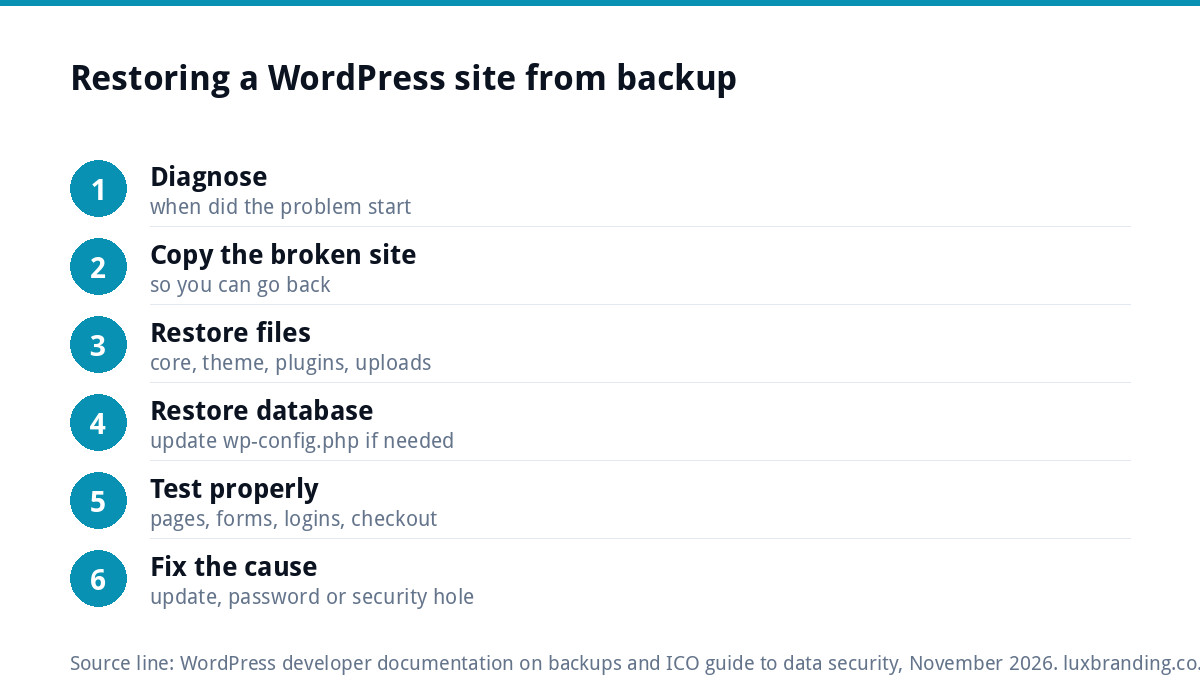
How you restore depends on your tools, but the order is the same. The WordPress documentation says to restore the files first, then the database.
- Stop and diagnose. Work out roughly when the problem started, so you pick a backup from before it.
- Take a copy of the broken site as it is now. If the restore goes wrong, you can at least get back to where you were.
- Restore the files from the chosen backup through your host’s control panel, your backup tool or by uploading them.
- Restore the database by importing the backup copy. If database details have changed, update them in wp-config.php.
- Check the site properly: homepage, key pages, forms, logins and, on a shop, a test checkout.
- Fix the cause. If it was a bad update, hold that plugin back. If it was a hack, change passwords and close the hole, or it will happen again.
On a shop, any orders taken between the backup and the restore will be lost from the site. Export recent orders from your payment provider before you restore so nothing is missed.
Common backup mistakes
- Only one copy, overwritten nightly. If a problem goes unnoticed for three days, the only backup you have already contains it. Keep a history.
- Backups on the same account as the site. If hosting lapses because a card expired, the backups usually go with it.
- Nobody knows the login. The backup tool was set up by a former designer, under their email. Make sure the storage account is in the business’s name and someone in the business can open it.
- Excluding the uploads folder to save space. The restored site works, but every image is gone. Check what your tool leaves out.
- No backup before updates. Updates are one of the most common moments for a site to break, because a plugin and a theme that worked together yesterday may not today. A one-click backup beforehand turns a crisis into a quick rollback, and lets you wait for a fixed version before trying again.
What a website backup does not cover
A site backup does not include your domain name, its DNS settings or, usually, your email mailboxes. Keep a note of where the domain is registered, who has the login and what the DNS records point to. If email is hosted separately, check what that provider keeps and for how long. Rebuilding a website from backup is straightforward; recovering a lost domain is not.
Test your backups before you need them
An untested backup is a hope, not a plan. Backups fail quietly: storage fills up, a password changes, a plugin stops running after an update. Every few months, restore a recent backup to a staging copy or a spare hosting space and click around. If your host or provider restores for you, ask them to show you one has worked.
Questions to ask your host or web designer
| Question | Good answer | Warning sign |
|---|---|---|
| How often are backups taken? | Daily, automatic | “When we remember” or “monthly” |
| Do backups include the database? | Yes, files and database | Not sure |
| Where are they stored? | Off the live server as well as on it | Only on the same server |
| How many copies are kept? | Several days or weeks of history | Only the latest one |
| Who restores, and how fast? | A named process and timescale | No clear answer |
| Can I get my own copy? | Yes, on request or self-service | Only if you pay to leave |
DIY, host or managed: which suits you
If you are comfortable with WordPress, a reputable backup plugin sending copies to your own cloud storage, plus the host’s backups, is a solid setup. The work is remembering to check it. If you would rather not think about it, a managed plan takes it off your list.
Our website management and hosting is £20 a month and includes UK hosting, SSL, daily backups, security monitoring, automatic updates and up to three business email mailboxes. The WordPress maintenance guide explains the rest of the routine, and our guide to website maintenance costs compares the options. Prices for everything are on our pricing page.
If the worst has already happened
If your site has been hacked, start with our hacked website guide before restoring anything, because restoring over an infected site without closing the hole often brings the problem straight back. For prevention, the WordPress security guide covers the basics that make a restore far less likely to be needed. Backups are the safety net; good security and careful updates keep you from falling into it.
Get the UK Website Project Brief Template (free)
A two-page template for briefing any UK web designer: sitemap, integrations, audience and deliverables. Cuts revision rounds in half.
No spam. UK GDPR compliant. We only use your email to send this resource, unless you tick the box to hear from us.
Frequently asked questions
How often should I back up my website? +
At least weekly for a small brochure site, and daily if it takes orders, bookings or enquiries every day or you post often. Always take a manual backup before updating plugins, themes or WordPress itself, and before any redesign or migration. Keep several recent copies, not just the latest one, in case a problem goes unnoticed.
Are my host's backups enough? +
They are a good start but not the whole answer. Backups stored only on the same server can be lost if the server fails, the account is suspended or an attacker deletes them. Keep a second copy in separate storage you control and download one occasionally. Ask your host how many copies they keep and how restores work.
What does a WordPress backup need to include? +
Both the files and the database. Files cover WordPress, your theme, plugins and uploaded images. The database holds pages, posts, settings, users and, on a shop, products and orders. A backup of files alone will restore a site with no content, so check that your tool or host includes the database.
How do I restore a WordPress site from a backup? +
Pick a backup from before the problem started, take a copy of the broken site first, restore the files, then import the database and update wp-config.php if database details changed. Then test key pages, forms, logins and checkout. Finally fix the cause, whether a bad update or a security hole, so it does not recur.
Does your hosting include backups? +
Yes. Our website management and hosting is £20 a month and includes daily backups alongside UK hosting, SSL, security monitoring, automatic updates and up to three business email mailboxes. If you manage your own hosting, we still recommend keeping a separate copy in storage you control and testing a restore every few months.