Quick answer
There are six routes back into a WordPress site, and five of them are free and need no developer. In order of ease: the password reset email, a second admin account, the hosting panel’s WordPress tools, a database password reset (twenty careful minutes, fully reversible), WP-CLI if your host has a terminal, and, only when the evidence points that way, the hacked-site playbook. This guide walks each in plain English. First rule: nothing is lost. The site is running, the content is in the database, and admin access is a doorway, not the building.
First: which locked-out is yours?
The right route depends on the flavour. Forgot the password: routes one to four, easiest first. The reset email goes to an address you cannot open (ex-employee, old ISP address, the developer’s inbox): skip straight to the hosting-panel routes, then change the admin email the moment you are in. The developer built it and vanished with the keys: same hosting-panel routes, plus the recovery steps in our developer-disappeared guide; whoever pays for hosting can prove ownership to the host and take everything back. Password AND email were changed without you: stop treating it as forgetfulness; that pattern is a compromise, and the hacked-site guide takes over from here. White screen or error instead of a login page: not an access problem at all but a site fault, usually a plugin or update, and the fix runs through hosting-panel tools too.
The ladder, rung by rung
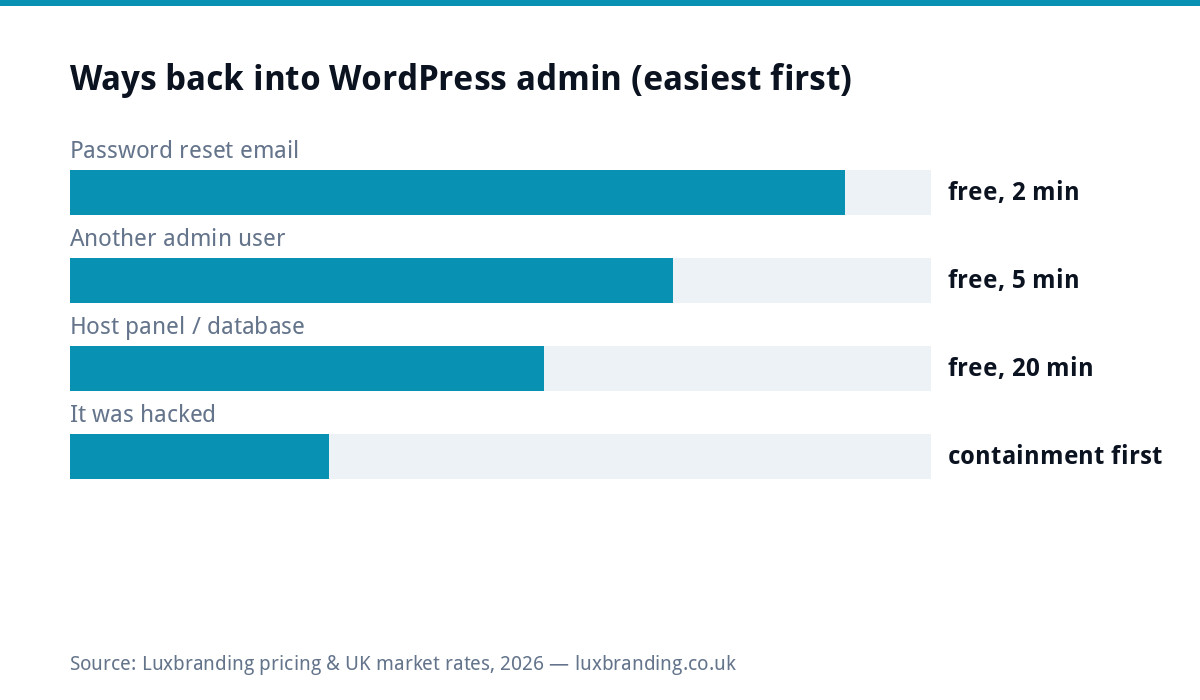
| Route | Time | You need | Notes |
|---|---|---|---|
| 1. Reset email | 2 min | The admin user’s inbox | Check spam; the sender is your own site |
| 2. Second admin | 5 min | Any other administrator account | They reset your password from Users |
| 3. Host’s WP tools | 10 min | Hosting login | Many UK hosts offer one-click admin password resets |
| 4. Database reset | 20 min | Hosting login | phpMyAdmin, users table, new hashed password |
| 5. WP-CLI | 5 min | Terminal access | One command; hosts with SSH only |
| 6. Hacked playbook | hours | Evidence of compromise | Containment before access |
Routes 1 and 2: the polite knocks
The login screen’s “Lost your password?” link emails a reset to the address on the admin account. It fails for boring reasons more than dramatic ones: the mail is in spam (it comes from your own site, which some filters distrust, a cousin of the problems in our deliverability guide), the site’s email sending is broken, or you are trying the wrong username. Try the email address as the username too; WordPress accepts either. Route two is simply asking anyone else with an administrator account (business partner, staff member, even a past contractor still on good terms) to log in and reset yours under Users. Both routes are five minutes and touch nothing sensitive. The official documentation’s versions of every reset method live at wordpress.org if you want the canonical reference open beside you.
Routes 3 and 4: the hosting panel (the one that always works)
Your hosting control panel outranks WordPress itself, which is why “who holds the hosting login” is the real ownership question. Many UK hosts include a WordPress toolkit with a literal reset-admin-password button: check for that first. Without it, the database route: open phpMyAdmin from the panel, select the site’s database, open the table ending _users, find your username, choose Edit, and paste a new password into the password field with the function dropdown set to MD5 (WordPress upgrades the hash on first login). Save, log in, done. It reads scarier than it is; you are editing one field in one row, and the panel’s automatic backups have your back regardless. While you are in there, note any administrator accounts you do not recognise; unexpected admins are the moment this stops being a password story, per the hacked-site guide above. If the hosting login itself is the thing you lack, the host’s support desk verifies account ownership (domain payments, card details, business records) and restores it; that path exists precisely for ex-developer situations.
After you are in: the ten-minute hardening
Getting in is half the job; making lockouts impossible again is the other half. Immediately: change the admin email to an address the BUSINESS controls forever, create a second administrator with a different email provider (the two-keys rule: one broken inbox can never lock you out again), store both in a password manager, and delete or demote any accounts belonging to people who no longer need access, ex-staff and ex-developers first. Then the standing hygiene from the official hardening guidance: updates current, unused plugins gone, two-factor on admins. Ten minutes, £0, and this article never applies to you again. If nobody in the business wants to own that checklist, that is what management at £20/month is for: access custody, updates, backups and a human who answers when the login misbehaves.
Worked example: the inherited site
Composite from the inbox: a café owner buys the business, and the website comes with it, in the loosest sense: the WordPress login is the previous owner’s dead email, the developer moved abroad years ago, nobody has touched the site since. Route one fails (dead inbox). Route two fails (sole admin). The hosting turns out to be paid annually from the business bank account, which is the golden thread: the host verifies the new owner from the account details, hands over the panel login, and the database reset takes fifteen minutes including the nervous re-reading. New admin email, second admin created, old accounts purged, password manager adopted. Total cost £0; total time under an hour; the scary part was never the technology but not knowing the hosting payment WAS the ownership proof. Check what your own hosting invoice email is today, while you are thinking about it.
The white-screen variant: locked out by the site itself
Sometimes the login page never appears: a white screen, a “critical error” notice, or an endless redirect. That is not an access problem but a site fault wearing one’s clothes, almost always a plugin or theme update that went wrong, and it has its own free ladder. First, check your email: modern WordPress sends a “your site is having a technical issue” message with a recovery-mode link that logs you in with the faulty plugin suspended; that email goes to the admin address, which is another argument for owning it. No email? The hosting panel’s file manager does the same job manually: browse to wp-content and rename the plugins folder to plugins-off, reload the site (it will run bare but alive), rename it back, then rename individual plugin folders one at a time until the culprit reveals itself. Themes get the identical treatment via the themes folder. Twenty minutes, £0, and no code knowledge beyond renaming folders. The prevention is equally unglamorous: updates applied one at a time rather than in batches (so the culprit is always obvious), taken when a backup is fresh, which is exactly the routine a £20/month management plan automates for owners who would rather never learn what wp-content is.
When it is genuinely a hack, and when to pay for help
Escalate out of this guide when you see: your password and email changed without you, admins you never created, the site redirecting or defaced, or the host’s malware warnings. That is containment territory (the hacked-site guide’s sequence: hosting password first, then scan, then restore), and access comes back as part of the cleanup rather than before it. Paying for help makes sense at two points: a compromise beyond your comfort (cleanup is scoped work priced by the mess) and prevention as a standing service. The £20/month management service exists for owners who never want to meet phpMyAdmin: we hold the keys properly, patch the holes that cause the dramatic version of this article, and answer lockouts as a message rather than a crisis. Both, as ever, on the public price list.
Get the UK Website Project Brief Template (free)
A 2-page template for briefing any UK web designer — sitemap, integrations, audience, deliverables. Cuts revision rounds in half.
No spam. Unsubscribe any time. UK GDPR compliant — your email is only used to send this resource.
Frequently asked questions
How do I get back into WordPress if I forgot my password? +
Use "Lost your password?" on the login screen; the reset lands at the admin user's email. If that email is gone or unreachable, the reliable route is resetting the password directly in the database through your hosting panel, which takes about twenty minutes with the steps in this guide.
Can I reset a WordPress password without email access? +
Yes. Through your hosting control panel, open the database tool (usually phpMyAdmin), find the users table, and set a new hashed password, or use WP-CLI if your host offers terminal access. No email involved; you just need the hosting login.
Why does my WordPress password suddenly not work? +
Either simple (browser autofilling an old password, caps lock, wrong user) or serious: if the password AND the recovery email were changed, treat it as a possible compromise and follow the hacked-site steps rather than the forgot-password steps.
Who can help if my developer set up the site and disappeared? +
Whoever pays for the hosting can regain everything: the hosting company verifies the account owner, and from the hosting panel you can reset WordPress passwords, create new admins and change the admin email without the developer's cooperation.
How do I stop getting locked out of WordPress again? +
Keep two admin accounts with different email providers, use a password manager, make sure the admin email is one you control forever (not an ex-employee's or developer's), and hold the hosting login in the business's name. Locked-out stories are almost always ownership stories.