Quick answer
Stop running further updates. If the site takes bookings or payments, restore the backup taken before the update. Otherwise, find the culprit: use the recovery mode email WordPress sends, or rename the plugins folder to switch every plugin off, then reactivate them one at a time. Roll back the plugin that breaks it and update again on a staging copy.
Updates keep WordPress secure, but every so often one goes wrong: a plugin clashes with another, a theme is not ready for a new version, or the server is running an older PHP version than the update expects. The result can be anything from a slightly broken layout to a page that says “There has been a critical error on this website”. This guide takes you through a calm, safe recovery in the right order, and how to stop it happening next time.
What “broke” usually means
Start by matching what you see to the likely cause. The fix is quicker when you know which kind of break you are dealing with.
| What you see | Likely cause | First move |
|---|---|---|
| “There has been a critical error on this website” | A plugin or theme throwing a fatal PHP error | Check the admin inbox for the recovery mode email |
| “Briefly unavailable for scheduled maintenance” | An update was interrupted | Delete the .maintenance file |
| Blank white page | Fatal error with error display switched off | Deactivate plugins via file access; read the error log |
| Site loads but layout or menus are wrong | Theme or page builder incompatibility, or stale cache | Clear caches, then test with plugins switched off |
| Contact forms or checkout stopped working | Form, payment or email plugin conflict | Test with only that plugin active; roll it back |
| Admin area broken, front end fine | Admin-side plugin conflict | Deactivate recently updated plugins one by one |
Step 1: stop and write down what changed
The worst thing you can do is keep clicking “update all” in the hope the next one fixes it. Instead, note exactly what was updated and when: WordPress core, which plugins, the theme. If updates ran automatically overnight, your host’s control panel or the plugin list will often show the new version numbers. That list is your suspect list.
If the site is critical to your income today, such as a shop or a booking system, skip ahead to restoring a backup first and investigate afterwards. A working site with yesterday’s versions is better than a broken one with today’s.
Step 2: use recovery mode if WordPress offers it
When a plugin or theme causes a fatal error, WordPress usually shows the critical error message to visitors and sends an email to the site’s admin address. That email names the plugin or theme at fault and contains a special link that logs you into recovery mode, where the faulty extension is paused for you so you can deactivate it.
Check the inbox for the admin email address, including spam. If the admin address is an old one nobody reads, this is the moment you discover it; update it once the site is back.
Step 3: clear a stuck maintenance message
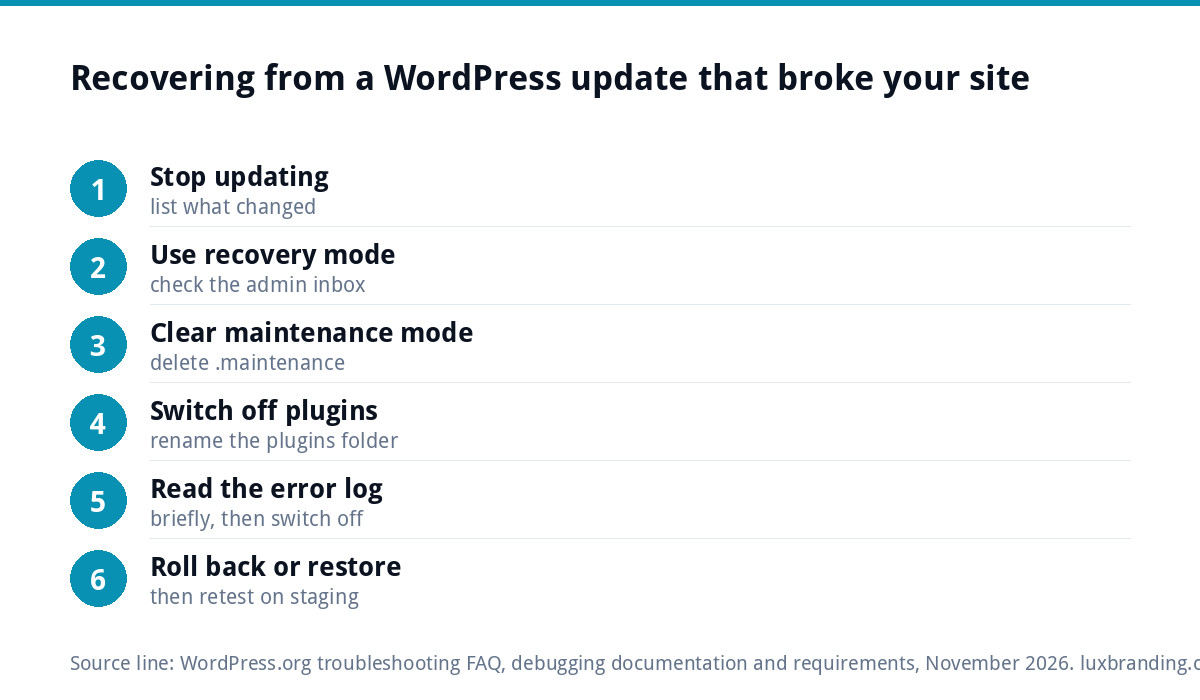
During an update WordPress places a file called .maintenance in the site’s main folder, and visitors see “Briefly unavailable for scheduled maintenance” while it exists. If the update was interrupted, the file can be left behind. WordPress’s own troubleshooting FAQ says simply deleting the .maintenance file stops the message, and that the update should then be run again in case it failed.
Step 4: switch off plugins without the admin area
If you cannot reach the dashboard, you can still disable every plugin. Using your host’s file manager or FTP, open the wp-content folder and rename the plugins folder to something like plugins.hold. The same WordPress FAQ describes this method: it disables all plugins while preserving their settings.
- Rename plugins to plugins.hold and reload the site.
- If the site works, a plugin is the cause. Log in, then rename the folder back to plugins. All plugins will show as deactivated.
- Reactivate them one at a time, checking the site after each.
- When the site breaks again, the plugin you just activated is the culprit.
- If the site was still broken with every plugin off, switch to a default WordPress theme to test the theme.
Before blaming any plugin for a layout problem, clear every cache: the caching plugin if you use one, the host’s server cache, any CDN, and your own browser. After an update, the site can serve a mix of old and new style files for a while, which looks exactly like a broken theme. Test in a private window on your phone as well as your computer. If the layout is fine once caches are cleared, nothing is actually broken.
Step 5: read the error log
When the cause is not obvious, the error log usually names the file and line at fault. WordPress’s guide to debugging in WordPress explains the settings: WP_DEBUG switches debug mode on, and WP_DEBUG_LOG saves errors to a debug.log file, usually in the wp-content folder. Setting WP_DEBUG_DISPLAY to false keeps the errors off the public page.
The same guide says it is not recommended to use these tools on live sites, so switch them on briefly, reproduce the error, read the log and switch them off again. Many hosts also show PHP error logs in their control panel, which is often simpler.
Step 6: roll back or restore
Once you know the culprit, you have two routes:
- Roll back one plugin or theme to the previous version, then wait for the developer to release a fix. This keeps every other update in place.
- Restore the whole site from the backup taken before the update. This is faster when several things broke at once, but anything added since the backup, such as new orders, enquiries or posts, will be lost unless you note it first.
Whichever route you choose, tell the plugin or theme developer what happened, with the error from the log. Most fix compatibility problems quickly once they know, and the report helps every other site using the same code.
Be careful with plugins that changed the database during the update. Putting the old files back does not always reverse a database change, which is why a full backup taken immediately before updating is the safest safety net. If you do not have one, ask your host straight away: many keep their own server backups for a limited period, and the sooner you ask, the more likely a pre-update copy still exists.
When the real problem is the PHP version
Sometimes nothing in WordPress changed at all: the host upgraded PHP, the language WordPress runs on, and an older plugin or theme cannot cope. The reverse also happens, where a new plugin version needs a newer PHP than your server runs. WordPress’s requirements page recommends PHP 8.3 or greater, and notes that older versions which still work have reached end of life and may expose your site to security vulnerabilities.
Your hosting panel shows the PHP version. If a plugin has not been updated in a long time and breaks on current PHP, replacing it is usually better than holding the whole server back.
Preventing it next time
| Habit | Why it helps |
|---|---|
| Back up immediately before updating | Gives you a clean restore point that includes the database |
| Test updates on a staging copy | Breaks happen where customers cannot see them |
| Update in small batches | If something breaks, you know which update did it |
| Read changelogs for major versions | Big version jumps are where breaking changes live |
| Remove plugins you do not use | Fewer plugins means fewer conflicts and less to update |
| Replace abandoned plugins | Unmaintained code is the most likely to break and to be exploited |
| Keep the admin email current | So recovery mode emails reach someone |
Our WordPress maintenance guide sets out a monthly routine, and the WordPress security guide covers the plugins and settings that matter most.
Handing updates to someone else
If you would rather not be the person fixing a broken site at ten at night, updates are a sensible thing to hand over. Our website management and hosting is £20 a month and includes UK hosting, SSL, daily backups, security monitoring, automatic updates and up to 3 business email mailboxes. For what other options cost, see our website maintenance cost guide, and if your current setup makes even simple edits difficult, read cannot update your own website. All our prices are on the pricing page.
Get the UK Website Project Brief Template (free)
A two-page template for briefing any UK web designer: sitemap, integrations, audience and deliverables. Cuts revision rounds in half.
No spam. UK GDPR compliant. We only use your email to send this resource, unless you tick the box to hear from us.
Frequently asked questions
How do I undo a WordPress update? +
Either roll back the single plugin or theme that caused the problem to its previous version, or restore the whole site from a backup taken before the update. Rolling back one item keeps other updates in place. A full restore is faster when several things broke, but anything added since the backup, such as orders or enquiries, may be lost.
What does 'There has been a critical error on this website' mean? +
A plugin or theme has caused a fatal PHP error, so WordPress cannot finish loading the page. WordPress usually emails the site's admin address with the name of the faulty extension and a link to recovery mode, where you can log in and deactivate it. Check spam folders and make sure that admin address is one you read.
How do I deactivate plugins if I cannot log in? +
Use your host's file manager or FTP to open the wp-content folder and rename the plugins folder, for example to plugins.hold. That disables every plugin while keeping their settings. Log in, rename the folder back to plugins, then reactivate plugins one at a time, checking the site after each, until you find the one that breaks it.
Should I turn off automatic updates to stop this happening? +
Usually not. Updates close security holes, and a site left unpatched is more likely to be hacked than broken by an update. A better approach is a backup immediately before updates, testing major updates on a staging copy, updating in small batches and removing unused or abandoned plugins, so a bad update is rare and quick to undo.
Can a PHP version change break WordPress? +
Yes. If your host upgrades PHP, older plugins or themes written for earlier versions can stop working, and a new plugin release can need a newer PHP than your server runs. WordPress recommends PHP 8.3 or greater. Check the version in your hosting panel, and replace plugins that are no longer maintained rather than holding the server back.