Quick answer
Use WebP for most website images. Google’s figures put lossy WebP 25 to 34% smaller than a comparable JPEG, and converting a whole site is part of our £99 speed optimisation. Keep JPEG as a fallback for photos, use PNG only for sharp-edged graphics such as screenshots, and use SVG for logos and icons.
Images are usually the heaviest thing on a small business website, and the file format you save them in makes a real difference to how fast pages load on a phone. This guide compares WebP, JPEG, PNG and SVG in plain English, explains which to use for which kind of image, and shows how to convert what you already have without losing quality.
The four formats in one table
| Format | Best for | Transparency | Main drawback |
|---|---|---|---|
| WebP | Photos and graphics on the web | Yes | Some older desktop software will not open it |
| JPEG | Photos, as a fallback | No | Larger than WebP at the same quality; blurs sharp edges |
| PNG | Screenshots, diagrams, flat graphics | Yes | Very large files for photos |
| SVG | Logos, icons, simple illustrations | Yes | Not suitable for photos |
The short version: WebP for almost everything, SVG for anything drawn as vector, and JPEG or PNG as fallbacks rather than defaults.
WebP: the default for most images
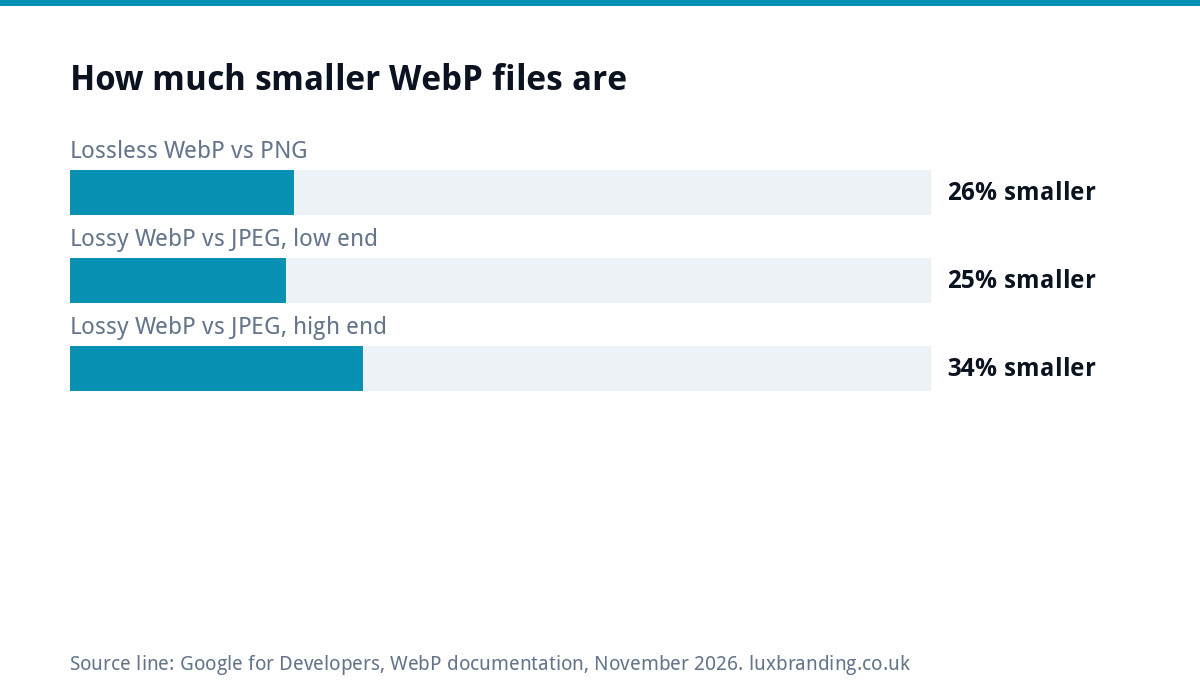
WebP is an image format developed by Google that handles both photos and graphics. Google’s WebP documentation states that WebP lossless images are 26% smaller than PNGs, and lossy WebP images are 25 to 34% smaller than comparable JPEGs at the same quality index. It also supports transparency, at a cost of just 22% extra bytes in lossless mode, and animation.
On a page with ten photos, a quarter or a third off every image adds up to a noticeably faster load on mobile data. That matters for trades and local businesses, because so many of your visitors arrive on a phone, often outdoors and on a weaker signal.
Browser support is no longer a worry. Mozilla’s image file type guide says WebP now has broad support in the latest versions of major browsers, while still suggesting a JPEG or PNG fallback for older ones.
When JPEG still makes sense
JPEG has been the standard photo format for decades. It compresses photos well by throwing away detail the eye is unlikely to notice, which is why Mozilla’s guide calls it “a good fallback format for photographs”.
Use JPEG when:
- You are sending photos to someone who needs to open them in older software.
- Your website platform cannot serve WebP yet.
- You need a fallback alongside WebP for very old browsers.
Avoid JPEG for anything with text, sharp lines or flat colour. The compression leaves smudges and coloured fringes around edges, which is why a logo saved as JPEG often looks fuzzy.
When PNG is the right call
PNG is lossless: it keeps every pixel exactly. That makes it ideal for screenshots, diagrams and flat graphics where blurring would be obvious, and it supports transparent backgrounds.
The catch is size. A photo saved as PNG can be many times heavier than the same photo as JPEG or WebP, with no visible benefit. If your site has big PNG photos, that alone can explain a slow homepage. Lossless WebP does the same job as PNG at a smaller size, so on a modern site PNG is mostly a fallback.
SVG for logos and icons
SVG is different from the others. Instead of storing pixels, it stores shapes as maths, so it stays perfectly sharp at any size and is usually tiny. Mozilla’s guide recommends SVG for diagrams, charts and anything that must be drawn accurately at different sizes, and says you should prioritise the SVG version of an icon whenever possible.
Your logo belongs on your website as an SVG. If you only have a JPG or PNG of it, it cannot simply be saved as SVG; it has to be redrawn as vector. Our guide on what to do if you only have a JPG of your logo explains the options, and our Recreate & Vectorise service rebuilds it as true vector for £79 for one layout. For the wider picture of which logo file goes where, see logo file formats explained.
What about AVIF?
AVIF is a newer format that can compress even further than WebP. Mozilla lists it alongside WebP as a format to prefer for raster images, but notes that support is not yet comprehensive and recommends a WebP, JPEG or PNG fallback using the picture element.
For most small business sites, WebP is the practical choice today. AVIF is worth adding where your setup can serve it with a fallback, but it is not where the big wins are. The big wins come from not uploading oversized images in the first place.
Which format for which image
| Image | Format | Sensible width |
|---|---|---|
| Full-width hero photo | WebP, JPEG fallback | About 1,600 to 2,000 pixels |
| Project or gallery photo | WebP | About 1,200 pixels |
| Team or product thumbnail | WebP | The size it displays at, doubled for sharp screens |
| Logo | SVG | Scales to any size |
| Icons | SVG | Scales to any size |
| Screenshot or diagram | Lossless WebP or PNG | The width it displays at |
The widths are general guidance rather than rules. The principle is to upload images no bigger than they will ever be shown, allowing for high-resolution phone screens.
How to convert images in WordPress
WordPress has accepted WebP uploads since version 5.8. The WordPress core announcement explains that you can upload and use WebP like a JPEG or PNG, provided your server’s image library supports it, and that WordPress does not convert existing uploads automatically.
- Check your host supports WebP. Try uploading a WebP file to the media library. An error message means the server’s image library needs updating.
- Resize before you upload. A photo straight off a phone is often several thousand pixels wide. Resize it to the width it needs first.
- Convert new images to WebP. Most image editors can export WebP, and free online converters do the job for a handful of files.
- Convert the existing library. For a site with hundreds of images, a conversion tool or your developer can batch the job and serve WebP with a fallback.
- Retest the speed. Run your key pages through PageSpeed Insights before and after so you can see the difference.
Size matters more than format
Switching format helps, but the biggest savings usually come from dimensions. A 4,000-pixel photo shown in a 600-pixel box is still a 4,000-pixel download, whatever format it is in. Fix the size first, then the format, then add lazy loading so images further down the page only load when a visitor scrolls to them. Our guide to website speed for small businesses covers the other fixes worth doing alongside images.
Common image mistakes on small business sites
When we look at slow small business websites, the same image problems turn up again and again. Most take minutes to fix once you know they are there.
- Phone photos uploaded straight from the camera roll. Modern phones take very large photos. Uploaded as they are, a single gallery page can weigh more than the rest of the site put together.
- Logos saved as JPEG. The compression blurs the edges and leaves a faint box around the mark on coloured backgrounds. Use SVG, or a transparent PNG or WebP if SVG is not possible.
- Screenshots saved as JPEG. Text in screenshots goes smudgy. Use lossless WebP or PNG.
- Photos saved as PNG. The opposite mistake: every pixel kept perfectly, at many times the file size, with no visible gain.
- The same huge image used as a thumbnail. If a 2,000-pixel photo is squeezed into a small card on the homepage, visitors still download all 2,000 pixels.
- Upscaling small originals. Enlarging a small, low-quality image does not add detail. It just makes a bigger, blurrier file. Start from the best original you have.
Fix those six and most sites see an improvement before they change a single format.
Getting it done for you
If your library runs to hundreds of images, converting them by hand is a long afternoon. Our website speed optimisation service is £99 one-off and covers image sizing and format along with the other common speed fixes. If you are planning a new site, our hand-coded custom WordPress websites start at £499 and are built mobile-first, so images are handled properly from day one. See every price on our pricing page, then order online or email us at support@luxbranding.co.uk.
Get the UK Website Project Brief Template (free)
A two-page template for briefing any UK web designer: sitemap, integrations, audience and deliverables. Cuts revision rounds in half.
No spam. UK GDPR compliant. We only use your email to send this resource, unless you tick the box to hear from us.
Frequently asked questions
Is WebP better than JPEG for websites? +
For most website photos, yes. Google's documentation says lossy WebP images are 25 to 34% smaller than comparable JPEGs at the same quality, which means faster pages, especially on mobile. JPEG is still useful as a fallback for very old browsers and for sending photos to people whose software cannot open WebP.
Should my logo be a PNG or an SVG on my website? +
Use SVG wherever you can. An SVG stays sharp at every size and is usually a very small file, while a PNG can look soft on high-resolution screens. If you only have a PNG or JPG of your logo, it has to be redrawn as vector rather than simply saved as SVG.
Does WordPress convert images to WebP automatically? +
Not by default. WordPress has accepted WebP uploads since version 5.8, provided the server's image library supports WebP, but it does not convert existing JPEG or PNG uploads on its own. You either upload WebP files directly or use a conversion tool, or have your developer batch-convert the library and serve WebP with a fallback.
Do all browsers support WebP now? +
The latest versions of the major browsers support WebP. Mozilla's image format guide describes support as broad but without deep history, so it still recommends providing a JPEG or PNG fallback for older browsers. A well-built site does this automatically, so visitors on old devices still see your images.
Will converting to WebP make my images look worse? +
Not if the quality setting is sensible. Lossless WebP keeps every pixel, and lossy WebP at a reasonable quality looks the same as a JPEG to most eyes while being smaller. Problems usually come from compressing too hard or from upscaling small originals, so start from the best original you have.