
Quick answer
Moving from Wix or Squarespace to WordPress is a rebuild, not a transfer: the design does not come with you, but your words, images, blog posts and often products can. List every page and its address, rebuild on WordPress, redirect each old address to its new one, then move the domain carefully so email keeps working.
The decision to leave a website builder is usually made for good reasons: slow pages, limited SEO control, rising subscription costs or the wish to own the site outright. Whether to move is covered in our Wix versus custom website comparison. This guide assumes you have decided, and walks through the move in the order that protects your rankings and your inbox.
What transfers and what does not
| Item | Transfers? | How |
|---|---|---|
| Page design and layout | No | Rebuilt in WordPress |
| Page text | Yes | Copied across, ideally improved on the way |
| Images | Yes | Downloaded and re-uploaded at good quality |
| Blog posts | Usually | Via an export or RSS import where available, otherwise copied |
| Products | Often | Exported as a spreadsheet and imported, then checked |
| Contacts and form submissions | Usually | Downloaded from the builder’s dashboard |
| Apps and widgets | No | Replaced with WordPress equivalents |
| Page addresses (URLs) | No, but they can be redirected | 301 redirects from old to new |
| Domain name | Yes | Pointed or transferred |
| Rankings | Largely, if redirects are right | Redirects plus Search Console checks |
Website builders store pages in their own formats, so the visual design cannot be lifted out. What you can export varies by platform and plan, so check your builder’s help centre before you start and download everything it allows.
Step 1: make an inventory of every page
Before you change anything, record what exists. This list becomes the backbone of the whole move.
- Every page and its exact address. Most sites publish a sitemap at yourdomain.co.uk/sitemap.xml, which lists the indexed pages.
- Your most valuable pages. In Google Search Console, export the pages with the most clicks over the last year. These must not lose their traffic.
- Forms, booking tools and integrations. Note what each does and where its submissions go.
- Page titles and descriptions for your top pages, so you can keep or improve them.
Save the list in a spreadsheet with one row per page. You will add the new address beside each one in step 4. It also doubles as a checklist on launch day, when every row needs testing, and as a record if questions come up months later.
Step 2: export and download what you can
Work through your builder’s dashboard and download everything it lets you take:
- blog posts, using any export option or the blog’s RSS feed;
- product lists as a CSV spreadsheet, if you sell online;
- contacts, subscribers and past form submissions;
- every image at the largest size available.
WordPress includes import tools for several sources. Its documentation on importing content describes an RSS importer under Tools, Import, which can bring in posts from a feed. Imported posts always need checking: formatting, images and internal links often need tidying before they go live.
Step 3: build the new site away from the live one
Build the WordPress site on a temporary address or staging area while your current site stays live. This is the time to fix what was wrong: faster pages, clearer service pages, better calls to action. Keep your strongest content, and do not quietly drop pages that bring in traffic.
Recreate essential functions with care: contact forms connected to the right inbox, booking tools, analytics and cookie consent. Check every page on a phone, because most visitors will see it that way.
Two decisions are worth making at this stage rather than after launch. First, where the site will be hosted: on a WordPress site you choose the host, so pick one with UK support, daily backups and an SSL certificate included. Second, who will keep WordPress, its theme and its plugins updated, because a WordPress site needs regular updates in a way a website builder does not. If nobody in the business wants that job, a managed hosting plan can cover it.
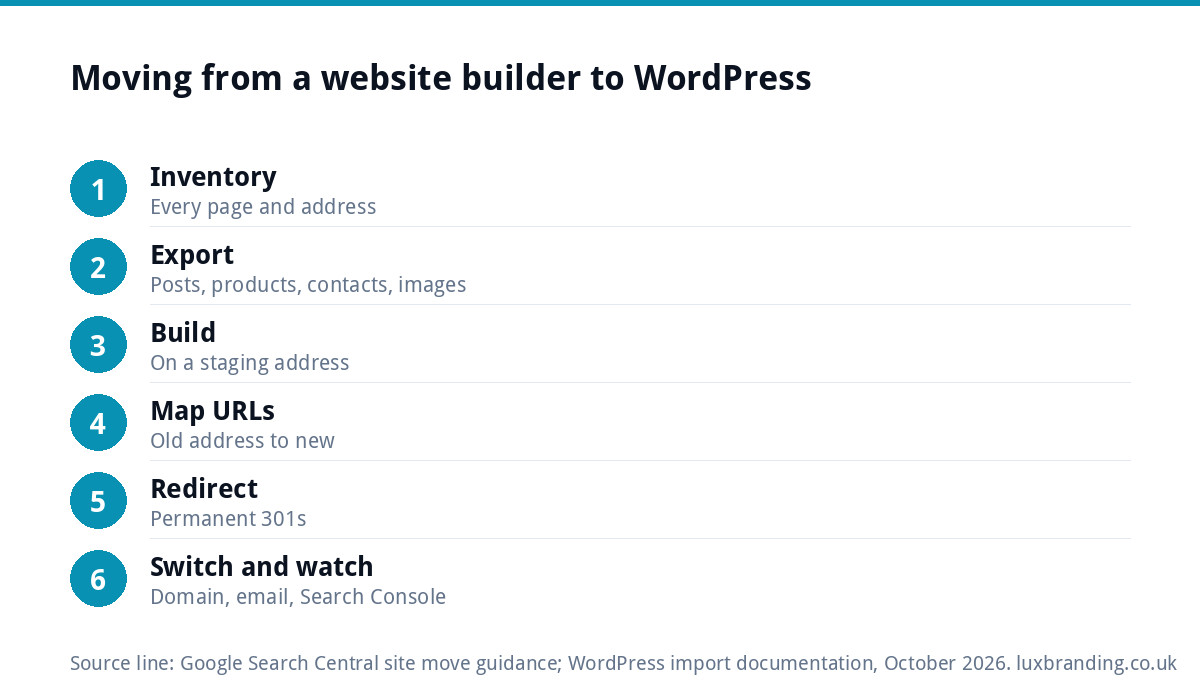
Step 4: map old addresses to new ones
Website builders often use their own address patterns, especially for blog posts and products, and those patterns rarely match WordPress exactly. For every row in your inventory, write the new address beside the old one. Google’s guide to moving a site with URL changes calls this preparing a URL mapping, and it is the step that most protects your rankings.
| Old address | New address | Note |
|---|---|---|
| /services-1 | /services/ | Builder added a number |
| /post/how-to-choose-a-boiler | /how-to-choose-a-boiler/ | Blog prefix removed |
| /product-page/oak-shelf | /shop/oak-shelf/ | Product path changed |
| /about-us | /about/ | Tidied |
| /old-offer-2022 | /offers/ | Retired page sent to its nearest equivalent |
The old addresses in the table are examples of the kinds of patterns builders use; your own will come from your inventory.
Step 5: set up permanent redirects
Each old address needs a permanent (301) redirect to its new address, so visitors and search engines arrive at the right page. Google’s documentation on redirects and Google Search recommends permanent server-side redirects when you change the address of a page. Redirect each page to its closest match, not everything to the homepage. Pages with no equivalent should go to the nearest relevant page.
Step 6: move the domain and protect email
This is the step that most often goes wrong. Before touching the domain:
- Write down every current DNS record, especially the MX records that route your email.
- If you bought the domain through the builder, decide whether to transfer it to a separate registrar or simply point it at the new host. Pointing is quicker; transferring gives you independence.
- Recreate the email records at the new DNS provider before switching anything.
- Switch the website records, then send and receive test emails straight away.
Keep your builder subscription active for a few weeks after launch in case you need to check anything on the old site, and note its renewal date so you cancel it deliberately rather than by accident.
Step 7: launch and watch
On launch day, test every redirect from your spreadsheet, every form and every phone number link. Submit the new sitemap in Google Search Console and request indexing for your most important pages. Our website launch checklist covers the full set of pre-live checks.
For the following weeks, watch Search Console for errors and for pages that drop in clicks. Some movement is normal while Google processes the change; a page that loses most of its traffic usually points to a missing or wrong redirect.
Mistakes that cost rankings during a move
- Redirecting everything to the homepage. Visitors land somewhere irrelevant and the old pages’ value is largely lost. Redirect page to page.
- Dropping pages that brought traffic. A page that looked unimportant may be the one bringing most of your enquiries. Check Search Console before you cut anything.
- Launching with the “discourage search engines” setting still on. WordPress staging sites are often hidden from search; make sure the live site is not.
- Forgetting images and file links. Old image and PDF addresses can carry search traffic too, and guides customers have bookmarked may break.
- Cancelling the old plan on launch day. If something was missed, you need the old site to check against.
- Changing everything at once. A new platform, new domain, new name and new content in one go makes problems hard to diagnose. Keep the domain the same if you can.
How long it takes and what it costs
A typical small business site of up to eight pages takes a few weeks to rebuild, map and launch, depending on how quickly content and approvals come together. Most of the cost is the rebuild itself, since the design cannot be transferred. Our guide to how much a website costs in the UK gives wider context, and if you sell online, the shop needs extra time for products, payments and testing.
Moving with us
Our Custom WordPress Website is £499 for up to eight pages, built in two to four weeks, hand-coded with no page builder and no platform lock-in, with an SEO foundation (schema, meta, sitemap), forms connected to your inbox and 30 days of support. Online shops move to our E-commerce Website at £499 for up to 20 products on WooCommerce or Shopify. Bigger sites are quoted in writing before any work starts, and every price is on our pricing page.
Get the UK Website Project Brief Template (free)
A two-page template for briefing any UK web designer: sitemap, integrations, audience and deliverables. Cuts revision rounds in half.
No spam. UK GDPR compliant. We only use your email to send this resource, unless you tick the box to hear from us.
Frequently asked questions
Can I transfer my Wix website to WordPress? +
Not as a finished design. Website builders store pages in their own formats, so the layout has to be rebuilt in WordPress. Your text, images and often blog posts, products and contacts can be exported or copied across. The domain name can be pointed at the new site or transferred to a separate registrar.
Will I lose my Google rankings moving from Squarespace to WordPress? +
Not if the move is planned. Map every old page address to its new one and set up permanent 301 redirects, keep the content of strong pages, and submit the new sitemap in Search Console. Some movement while Google processes the change is normal; large drops usually point to missing or wrong redirects.
How do I keep my email working when I move my website? +
Write down every DNS record before you change anything, especially the MX records that route email. Recreate them at the new DNS provider before switching the website records, then send and receive test emails straight away. Keep the old builder subscription active for a few weeks after launch.
How long does it take to move a website to WordPress? +
For a typical small business site of up to eight pages, a few weeks to rebuild, map addresses, set up redirects and launch, depending on how quickly content and approvals come together. Online shops take longer because products, payments and checkout all need importing and testing.
How much does Luxbranding charge to move my site to WordPress? +
The rebuild is our Custom WordPress Website at £499 for up to eight pages, built in two to four weeks with an SEO foundation and 30 days of support. Online shops move to our E-commerce Website at £499 for up to 20 products. Bigger sites are quoted in writing first.