Quick answer
Google Business Profile verification usually fails because the evidence did not match the profile: a video missing the business name, location or proof you run it, details edited mid-process, or a duplicate profile. Read the message Google shows, fix that specific gap, then re-verify by the same or another offered method. Reviews can take up to five working days.
Verification is Google checking that your business is real and that you are entitled to manage it. When it fails, the profile stays hidden or unverified, and you cannot use most of its features. The good news is that most failures are fixable without starting again. This guide covers the methods Google uses, what each failure message means, the causes that most often trip up trades and small businesses, and the order to fix them.
How Google verifies a business
Google’s help page on verifying your business lists the methods it may offer. You do not choose freely; Google decides which are available for your profile.
| Method | How it works | Common reason it fails |
|---|---|---|
| Video recording | A continuous video recorded live on your phone through the profile | Missing location, business name or proof of management |
| Live video call | A call with Google support during your opening hours | Booked outside hours or evidence not to hand |
| Phone or text | A code sent by call or SMS | Number routes through an automated menu, which cannot receive it |
| Verification steps sent to an address you can access | Address not checked, or the email lands in spam | |
| Postcard | A five-digit code posted to the business address | Profile edited while waiting, or code expired |
Google says reviews take up to five working days and occasionally longer. Postcards usually arrive within 14 days and the code expires after 30 days.
What the failure messages mean
Google’s page explains the signals you may see after an attempt:
- The “Get verified” button reappears. Google could not fully verify the business. Try again, or use another method if more than one is offered.
- A “Review issues” notice after a video. The video was not accepted. Select it and follow the instructions, which list what was missing.
- A request for more information. Usually because business details recently changed. Select Get verified and go through it again.
Read the message carefully before doing anything else. Reacting by editing the profile or creating a new one usually makes things slower.
Video verification: what Google wants to see
Video is now the method many small businesses are offered, and it is where most failures happen. Google’s page on verifying with a video recording sets out three things the video must show.
| Evidence | Shopfront business | Service-area business |
|---|---|---|
| Location | Street signs, building numbers or nearby businesses | Street signs, landmarks or identifiers at your business address |
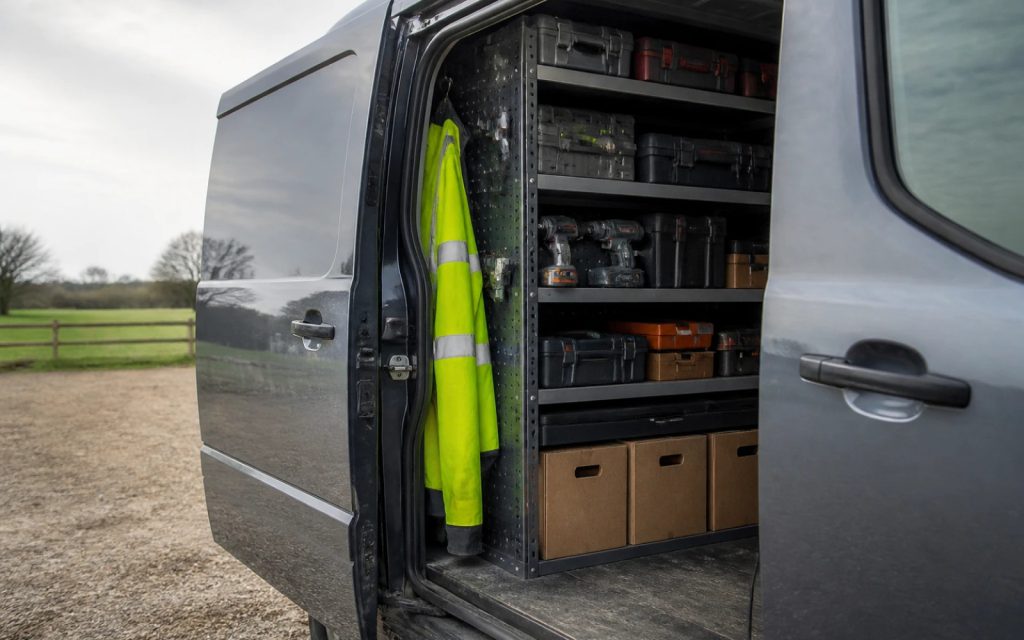
| Proof the business exists | Shopfront or signage with the business name on a permanent fixture | Tools, equipment, products, business cards or branded clothing |
| Proof you manage it | Staff-only actions such as opening the till or a storeroom | Performing the service, opening a branded van, or a business document in the profile’s name |
The rules on recording matter as much as the content. Google says the video must be an unedited, complete recording with no breaks, captured live rather than pre-recorded, at least 30 seconds long and uploaded from a mobile device through your profile. Avoid bank details, ID numbers and other people’s faces. Its examples of rejection reasons include the business name not visible on the shopfront, no nearby area shown, and missing proof of authorisation to operate the business.
If a video is rejected, Google says you can record a new one that includes everything from the first attempt plus the missing items. Plan it before you press record.
A video plan that covers every requirement
- Start outside with a street sign, the building number or a recognisable landmark, then walk to your premises or van without stopping.
- Show the business name on something permanent: the shop sign, the van livery, branded workwear.
- Show the tools of the trade: the kit, stock or equipment that proves what you do.
- Prove you are in charge: unlock the shop or van, open the till or storeroom, or show a business document in the profile’s name, such as an invoice or utility bill, keeping sensitive numbers covered.
- Keep going for at least 30 seconds in one continuous take, with no edits.
For service-area trades with no shopfront and an unbranded van, this is genuinely hard. A plain white van and a toolbox prove little. Branded evidence, such as a lettered van, printed workwear or business cards, makes verification far simpler, which is a practical reason to sort it beyond marketing.
Other common causes and fixes
| Cause | Sign | Fix |
|---|---|---|
| Details edited while a postcard is on its way | Code no longer works | Google says do not edit name, address or category, or request a new code, while waiting |
| Phone line with an automated menu | Code never heard | Use a direct mobile or landline without a menu |
| Duplicate profile exists | Verification blocked or profile flagged | Find the existing profile and claim or request ownership |
| Someone else already verified it | Told the profile is managed by another account | Request ownership; the current owner has three days to respond |
| Ineligible address | Repeated failure | Virtual offices and remote mailboxes are not eligible; use your real base |
| Business name with extra keywords | Video name does not match the profile | Use your real trading name, matching your signage |
Tips for the phone, email and postcard methods
- Phone or text: Google says automated phone menus cannot receive the code, so use a number that rings straight through, such as a mobile. Make sure it is the number on the profile.
- Email: use an address you check daily, and look in spam and promotions folders if nothing arrives.
- Postcard: make sure the address is complete, including a unit or flat number, and that whoever collects the post knows to keep it. Do not change the profile while waiting, and do not request a second card, which can cancel the first.
Duplicate and ownership problems
Google allows one profile per business. Its page on duplicate profiles and ownership issues explains that duplicates are removed from Search and Maps, and lists common causes: an existing verified profile for the same business, several profiles at one address, or separate profiles for different services. If a former employee, web designer or agency verified your profile years ago, you can request ownership. The current owner has three days to respond; if they do not, you may be able to claim it, though Google says this is not always available.
If you created a duplicate by accident, you can remove it without affecting the verified profile, but check you are deleting the right one, because removal also deletes its content and managers.
The order to work in
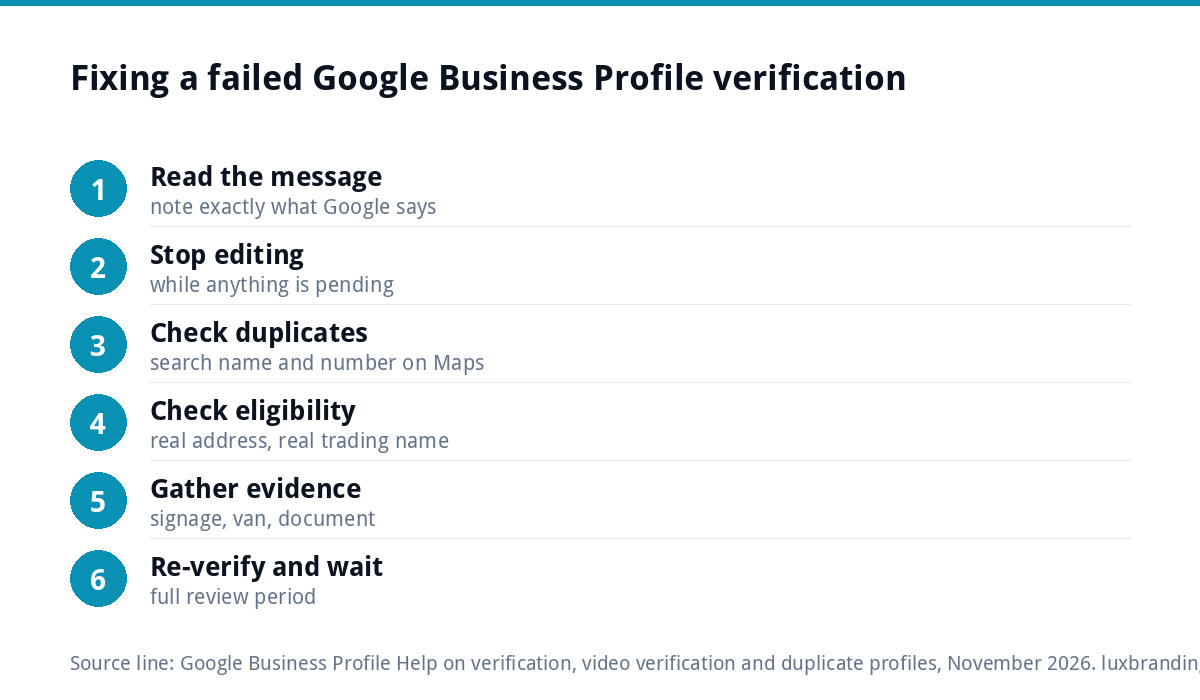
- Read Google’s message and note exactly what it says.
- Stop editing the profile while anything is pending.
- Check for duplicates by searching your business name and phone number on Google Maps.
- Confirm the address is eligible and the name matches your signage.
- Gather evidence: signage, branded van or clothing, a business document.
- Re-verify using the method offered, planning any video before you record.
- Wait the full review period before trying again.
When verification fails repeatedly
If you have tried more than once with complete evidence and still fail, contact Google Business Profile support through the help centre rather than creating a new profile. A new profile will usually be treated as a duplicate and makes the problem worse. If your profile ends up suspended rather than unverified, that is a different process, covered in our guide to a suspended Google Business Profile.
After verification: making the profile work
Verification gets you on the map; it does not get you chosen. Once you are through, complete every field, add real photos, choose accurate categories and ask happy customers for reviews. Our GBP optimisation guide covers the full checklist, and the setup cost guide compares doing it yourself with paying for help.
If evidence is the sticking point, a lettered van or branded workwear helps with verification and with every customer who sees you on the road. Our vehicle wrap and signage design starts from £99, and our guide to workwear and merch design covers uniforms. If you would rather hand the profile over, our Google Business Profile setup and optimisation is £199, covering categories, keywords, photos, review strategy and tracking. Every price is on our pricing page.
Get the UK SEO DIY Audit Checklist (free)
A 32-point checklist UK SMEs can run against their own website in an afternoon. Surfaces the quick wins before paying for a paid audit.
No spam. UK GDPR compliant. We only use your email to send this resource, unless you tick the box to hear from us.
Frequently asked questions
Why did my Google Business Profile verification fail? +
Usually because the evidence did not match the profile. Common causes are a video that did not show the location, the business name or proof you manage it, details edited while a postcard was on its way, a phone line with an automated menu, a duplicate profile, or an ineligible address such as a virtual office.
What should a verification video show? +
Google asks for three things: the location, such as street signs or landmarks; proof the business exists, such as signage, tools, equipment or branded clothing; and proof you manage it, such as opening the till or a branded van. Record one unedited take of at least 30 seconds, live, from your phone.
How long does Google Business verification take? +
Google says reviews take up to five working days and occasionally longer. Postcards usually arrive within 14 days and the code expires after 30 days. Verification can be instant in some cases, for example if you have already verified your website in Google Search Console. Avoid editing the profile while waiting.
Should I create a new profile if verification keeps failing? +
No. Google allows one profile per business, and a new one is likely to be treated as a duplicate, which makes things worse. Fix the specific issue Google reports and re-verify. If you have tried with complete evidence and still fail, contact Google Business Profile support through the help centre.
Can you help get my profile verified? +
Our Google Business Profile setup and optimisation is £199 and covers categories, keywords, photos, review strategy and tracking, set up within Google's rules. Verification itself has to be completed by the business owner, using the evidence Google asks for, so gather signage, branded items and a business document before you start.