Quick answer
Show your work as projects, not a photo dump. Give each job a card with one strong lead photo, four to eight supporting images and a caption saying what you did, where and what problem it solved. Group projects by service, put your best three first, compress every image, and end with a clear way to get a quote.
For most trades and service businesses, the gallery is the most persuasive page on the website. A customer choosing a roofer, a kitchen fitter or a landscaper wants to see work like theirs, done well, nearby. Yet many galleries are a long grid of unlabelled thumbnails that load slowly on a phone and tell the visitor almost nothing. This guide covers the layouts that work, how to caption and order projects, and the technical basics that keep the page fast and findable.
Why most galleries underperform
The usual problems are easy to spot once you look for them:
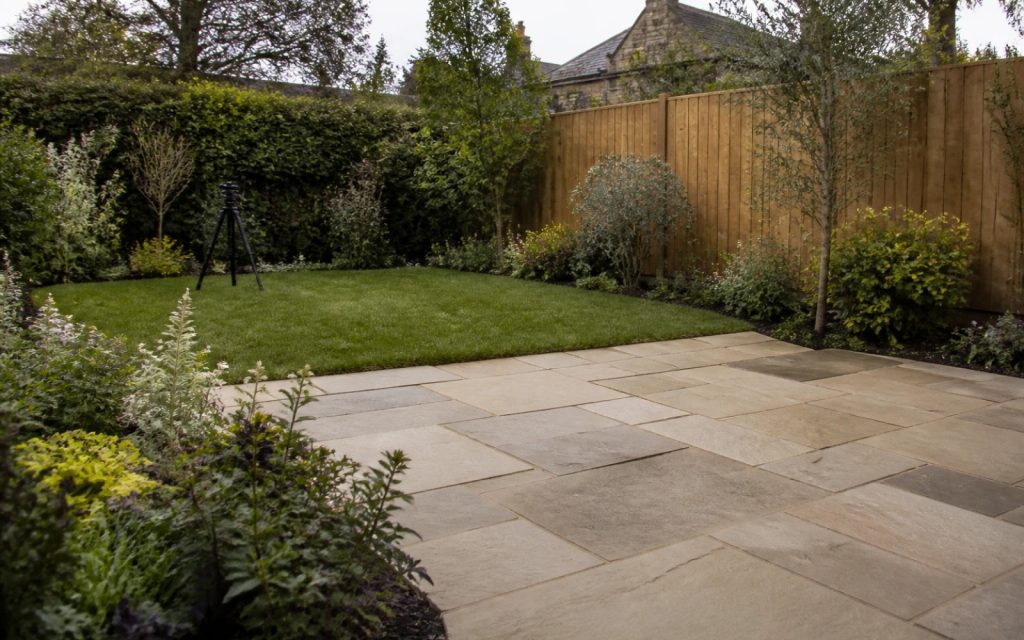
- No context. A photo of a patio, with no location, size or problem solved, could have been taken anywhere.
- Everything at once. Two hundred images in one grid, oldest first, with the best work buried on page six.
- Mixed services. A visitor looking for a loft conversion has to scroll past fencing, guttering and a bathroom.
- Slow loading. Full-size photos straight from a phone, often several megabytes each.
- A dead end. The visitor likes what they see and then has to hunt for a phone number.
Each of these is fixable without new photos. Most galleries improve dramatically just by choosing fewer, better images and telling the story of each job.
Gallery layouts compared
| Layout | How it works | Best for | Watch out for |
|---|---|---|---|
| Simple grid | Equal-sized thumbnails that open larger | Small, consistent sets of images | No room for captions; gets long fast |
| Masonry grid | Thumbnails at their natural shapes, staggered | Photographers, interiors, mixed shapes | Looks busy; order is hard to control |
| Project cards | One card per job, linking to a short project page | Most trades and service businesses | Needs a caption and a few photos per job |
| Before-and-after | Two photos side by side or with a slider | Renovation, cleaning, landscaping, repairs | Only convincing with matching angles |
| Carousel | One image at a time, auto-rotating | Very little; best avoided as the main view | Later slides are easy to miss |
For a trade business, project cards are the strongest default. They turn a gallery into a set of mini case studies, each one answering “have they done a job like mine?”
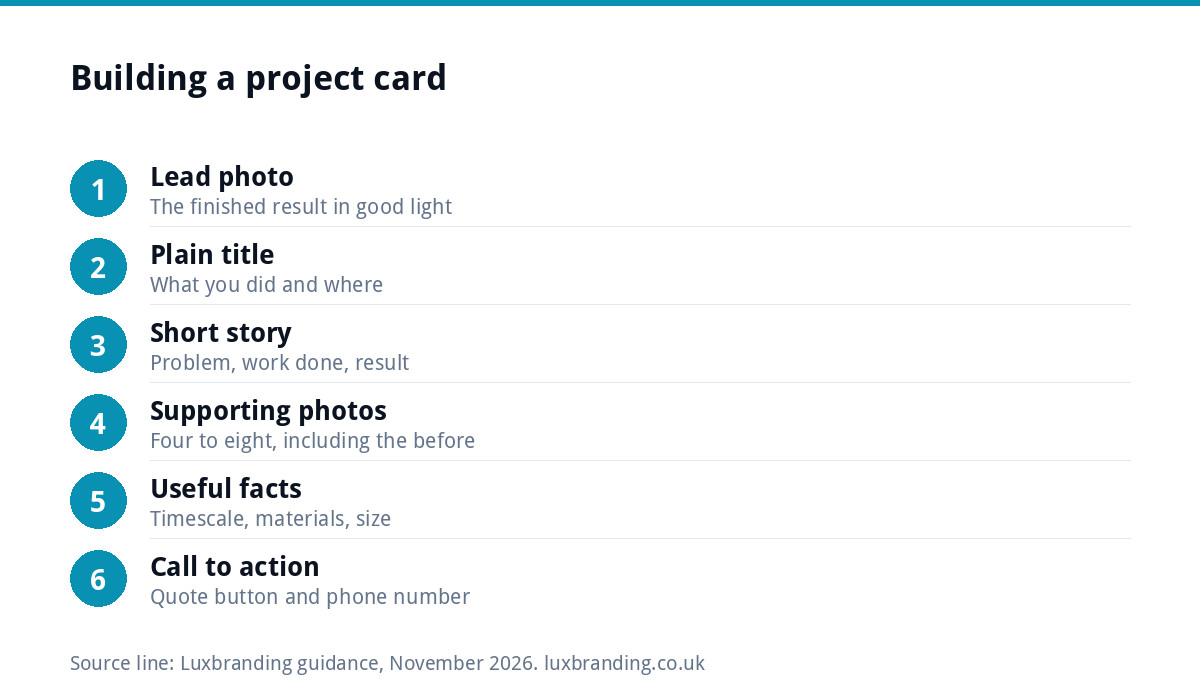
The project card formula
Each project needs only a few elements to work hard:
- A lead photo of the finished result, taken in good light, straight on, with clutter removed.
- A plain title that says what and where: “Single-storey rear extension, Harrogate” beats “Project 14”.
- Two or three lines of story: the problem, what you did, and the result for the customer.
- Four to eight supporting photos: detail shots, progress shots and the before view.
- Facts that help a buyer, where you are happy to share them: timescale, materials, size.
- A call to action: “Planning something similar? Get a quote” with your number and form.
On the gallery overview, show just the lead photo, the title and a short line per card. The visitor scans the cards and clicks into the jobs that look like theirs.
What to photograph on every job
A good gallery starts on site, not at the computer. Build a simple shot list into every job so the material is there when you need it:
- The before view, from a spot you can find again, before any tools come out.
- Two or three progress shots that show the hidden quality: the groundwork, the insulation, the first fix. These reassure buyers about the parts they will never see.
- The finished result from the same spot as the before view, then a wider shot that shows the setting.
- Two or three details: a neat joint, a clean edge, a tidy junction box. Details signal craft.
- The site left clean, if it is part of what customers value about you.
Shoot in daylight where you can, hold the phone level, wipe the lens, and turn off any beauty filter. Tidy the frame before you press the button: move the bins, the ladders and the dust sheets. It takes two minutes and makes the difference between a photo that sells and one that does not.
Ordering and filtering
Put your three best, most typical projects first, not your most recent. If you offer several services, add simple filters or separate gallery sections, so a visitor can jump straight to “Bathrooms” or “Driveways”. Keep filter names identical to the service names in your menu, so the website feels like one joined-up system.
It also pays to link each service page to its own projects. A visitor reading about garden rooms should see two or three garden-room projects on that page, with a link to the rest. That way proof sits next to the claim, which is where it persuades.
Review the gallery every few months. Retire projects that no longer reflect your standard or the work you want more of, and promote recent jobs that do. A gallery is a sales tool, not an archive: if you would rather not win another job like the one in a photo, take it down.
Captions that sell without overselling
A good caption is specific and honest. “Replaced a leaking flat roof on a 1970s garage in Leeds with a single-ply membrane; completed in two days” tells the reader far more than “Another happy customer!”. Use the words your customers use, mention the town or area where you are comfortable doing so, and avoid claims you cannot back up. If you quote the customer, ask their permission first and keep a record that they agreed.
Before-and-after done properly
Before-and-after pairs are the most persuasive images a trade can show, but only when they are fair. Shoot both from the same spot, at the same height, in similar light. Do not use filters that exaggerate the difference. Get into the habit of taking the “before” photo on day one of every job; you cannot go back for it later. Our guide to branding for trades businesses has more on using real work in your marketing.
Image sizes and speed
Gallery pages are usually the heaviest on a site. Phone photos are often several megabytes each; a page of thirty of them can overwhelm a mobile connection. Three habits keep things fast:
- Resize before uploading. Thumbnails need only a few hundred pixels across; full-size views rarely need more than about 2,000.
- Serve the right size to each screen. MDN’s guide to responsive images explains how srcset and sizes let a phone download a smaller file than a desktop, saving bandwidth.
- Load images as people scroll, rather than all at once, and use modern formats such as WebP where your site supports them.
If your gallery is already slow, our guide to website speed for small businesses explains what to check first.
Alt text and file names
Search engines cannot see photos; they read the words around them. Google’s guidance on image SEO calls alt text the most important attribute for describing an image, advises short but descriptive file names rather than names like image1.jpg, and recommends placing images near relevant text. That is another reason the project card format works: every photo sits next to a caption that describes it.
Alt text also matters for people using screen readers. The W3C’s images tutorial says informative images need a short description of their essential information, while purely decorative images should have an empty alt attribute. For a gallery, describe the work: “Oak-framed garden room with bi-fold doors, Cheltenham”.
Gallery checklist
| Check | Done when |
|---|---|
| Projects, not loose photos | Every image belongs to a titled job |
| Best work first | Your three strongest projects lead the page |
| Grouped by service | Filters or sections match your menu |
| Honest before-and-afters | Same angle, same light, no heavy filters |
| Fast on a phone | Images resized, compressed and loaded as needed |
| Described | Alt text and file names say what and where |
| Permission recorded | Customers agreed; no house numbers or number plates shown |
| Next step visible | Quote button and phone number on every project |
Getting a gallery that wins work
Our custom WordPress website is £499 for up to 8 pages, hand-coded and mobile-first, with a written CMS walkthrough so you can add new projects yourself. If you only need a single page to show your work and take enquiries, a one-page website is £299. If an existing gallery has made your site slow, Website Speed Optimisation is £99. Every fixed price is on our pricing page.
Get the UK Website Project Brief Template (free)
A two-page template for briefing any UK web designer: sitemap, integrations, audience and deliverables. Cuts revision rounds in half.
No spam. UK GDPR compliant. We only use your email to send this resource, unless you tick the box to hear from us.
Frequently asked questions
What is the best gallery layout for a trade business website? +
Project cards usually work best. Each card shows one finished job with a lead photo, a plain title saying what and where, and a short line of story, and it links to a page with four to eight more photos. It answers the visitor's real question: have they done a job like mine, and done it well?
How many photos should a website gallery have? +
Fewer than most businesses think. A dozen strong, well-captioned projects persuade more than two hundred loose photos. Lead with your three best and most typical jobs, group the rest by service, and remove anything blurry, dark or repetitive. Add new projects regularly rather than everything at once.
Why is my gallery page so slow? +
Usually because photos were uploaded at full size straight from a phone, often several megabytes each, and all load at once. Resize images before upload, compress them, serve smaller versions to phones with responsive images, and load images as the visitor scrolls. A modern format such as WebP helps too.
Do gallery images need alt text? +
Yes. Google calls alt text the most important attribute for describing an image, and screen reader users rely on it. Describe the work plainly, for example the type of job, the key material and the town. Purely decorative images, such as background textures, should have an empty alt attribute instead.
Can I update my own gallery after the website is built? +
With our custom WordPress website, yes. It is £499 for up to 8 pages and includes a written CMS walkthrough, so you can add new projects, photos and captions yourself. If you just need one page to show your work and take enquiries, our one-page website is £299.